
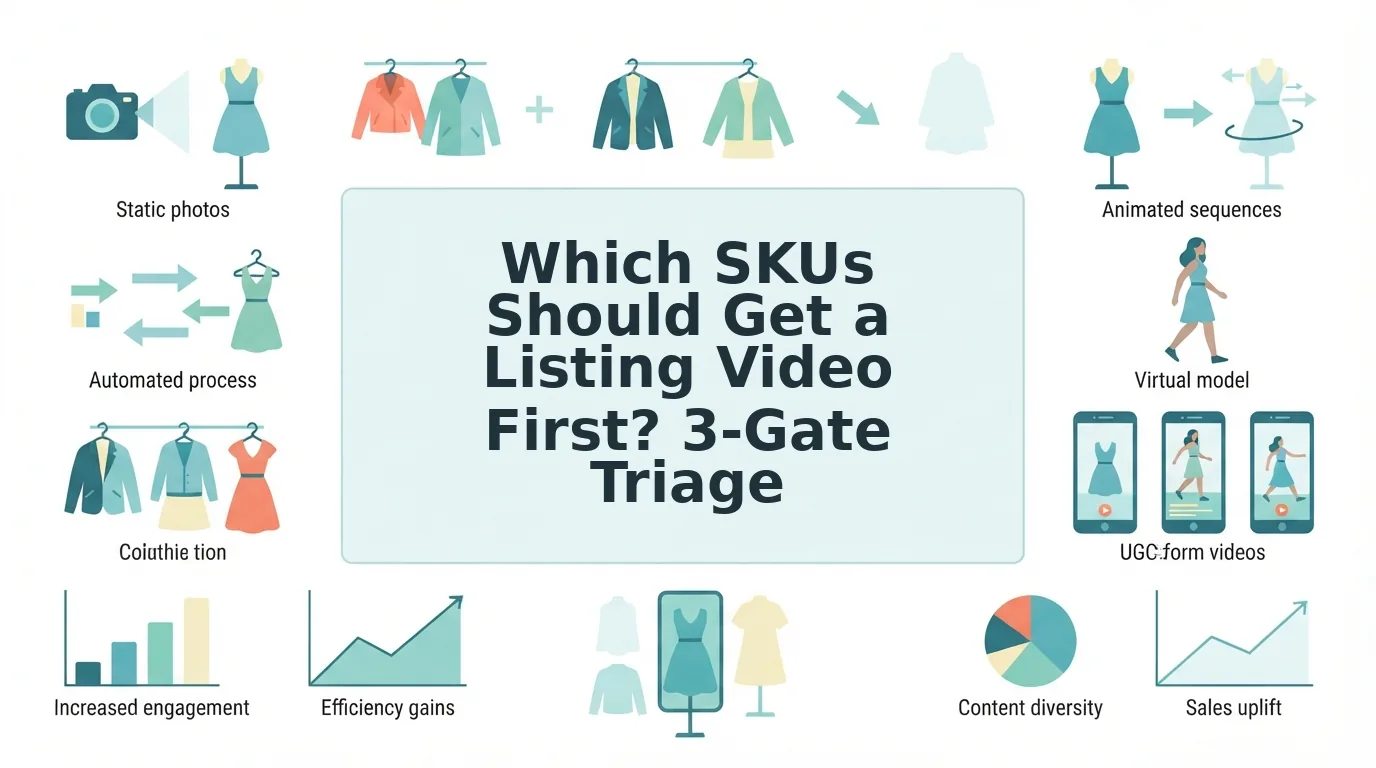

You have hundreds of SKUs. Every one has a full set of catalog stills, and none has motion. You can't animate the whole catalog at once, so the real question is which skus should get a listing video first.
That backlog is normal, and starting with your bestseller feels like the obvious move. This guide replaces that guess with a ranked shortlist built on three gates: photo coverage, movement payoff, and catalog priority.
Short answer: First, animate the SKUs that have three or more sharp stills covering front, back, and detail. They should also be made of fabric that moves in ways a still can't show, and be core or launching items with active product pages. For every other SKU, improve the photos before you generate anything.
Picture a store whose catalog is mostly ghost mannequin and flat lay shots, trying to decide where to start. Keep that store in mind as you work through the gates.
Along the way, you'll see why your top seller may not be the first SKU to animate.
What Makes a SKU Ready for a Listing Video?
A video-ready SKU is a product whose stills are sharp, evenly lit, and show the garment from multiple angles. The more angles you supply, the less the model has to guess.
Think of source photos as an animator's reference sheets. Every missing angle is a gap someone has to fill in. FashionUGC accepts one to six stills per item, covering front, back, side, flat lay, on-body, and fabric detail.
Before you queue a SKU, check its stills against this list:
- Even lighting: no blown-out highlights or deep shadows hiding the seams.
- Visible hems: the bottom edges of sleeves, skirts, and trousers are fully in frame.
- Sharp garment edges: clean outlines with no motion blur or soft focus.
- Clean ghost-mannequin interiors: the neckline and inner collar are edited cleanly, with no leftover parts of the mannequin form.
The limit is simple: low-res stills or a single blurry shot will not produce production-ready motion. Reshoot or replace those images first, using the guide to product photos for AI fashion video.
Ghost mannequin vs flat lay vs on-body sources
Ghost mannequin, flat lay, and on-body photos each give an AI fashion video different information about the same garment. Ghost mannequin shots show three-dimensional shape, neckline structure, and how the garment holds volume, which keeps proportions believable once it moves. Flat lays show the full silhouette, print placement, and construction details like seams and pockets without perspective distortion, while on-body shots show how fabric drapes, folds, and fits on a person, so the strongest source set combines one of each with a fabric close-up.
If your catalog leans on flat lays, you can still start now. See how to turn flat lays into fashion video, and pair them with a detail shot.
How to Score Each SKU With the 3-Gate Triage
Score every SKU from 0 to 2 on each of three gates: photo coverage, movement payoff, and catalog priority. Sort by the 0 to 6 total and animate the highest scores first.
Before you start: export your SKU list to a spreadsheet with product page links. Add columns named Coverage, Movement, Priority, and Total. Plan on one to two minutes per SKU.
- Score Gate 1, Photo Coverage. Open each SKU's image folder and count the usable angles. Enter 0 for a single low-res shot, 1 for one or two sharp angles, and 2 for three or more sharp angles that include a detail close-up. When you finish, every Coverage cell should have a number.
- Score Gate 2, Movement Payoff. Here's where most shortlists go wrong. Ask whether motion reveals drape, swing, pleats, or texture that a still hides. Enter 0 for rigid pieces, 1 for moderate movement, and 2 for drape-heavy pieces.
- Score Gate 3, Catalog Priority. Check whether the SKU is core or evergreen, an upcoming launch, or seasonal, and review its product page traffic. Enter 2 for core items or launches with active pages, 1 for steady seasonal items, and 0 for items near the end of their season.
- Add and sort. Add up the three gates in the Total column and sort from highest to lowest. Your 5s and 6s should now sit at the top, ready to queue.
Use this comparison when you score Gate 2:
| Garment type | Examples | What motion reveals | Typical Gate 2 score |
|---|---|---|---|
| Drape-heavy | Slip dresses, pleated skirts, outerwear | Swing, folds, pleat movement, fabric weight | 2 |
| Rigid | Basic tees | Little beyond fit and color | 0â1 |
Pieces with strong texture often deserve a higher score than their shape suggests. See how to show fabric texture in clothing video.
Use this reference table for every gate:
| Score | Photo Coverage | Movement Payoff | Catalog Priority | |||||||||||||||||||||||
|---|---|---|---|---|---|---|---|---|---|---|---|---|---|---|---|---|---|---|---|---|---|---|---|---|---|---|
| 0 | One low-res shot | Rigid, little visible movement | Nearing end of season | |||||||||||||||||||||||
| 1 | One or two sharp angles | Some movement | Steady seasonal | |||||||||||||||||||||||
| 2 | 3+ sharp angles, including detail | <
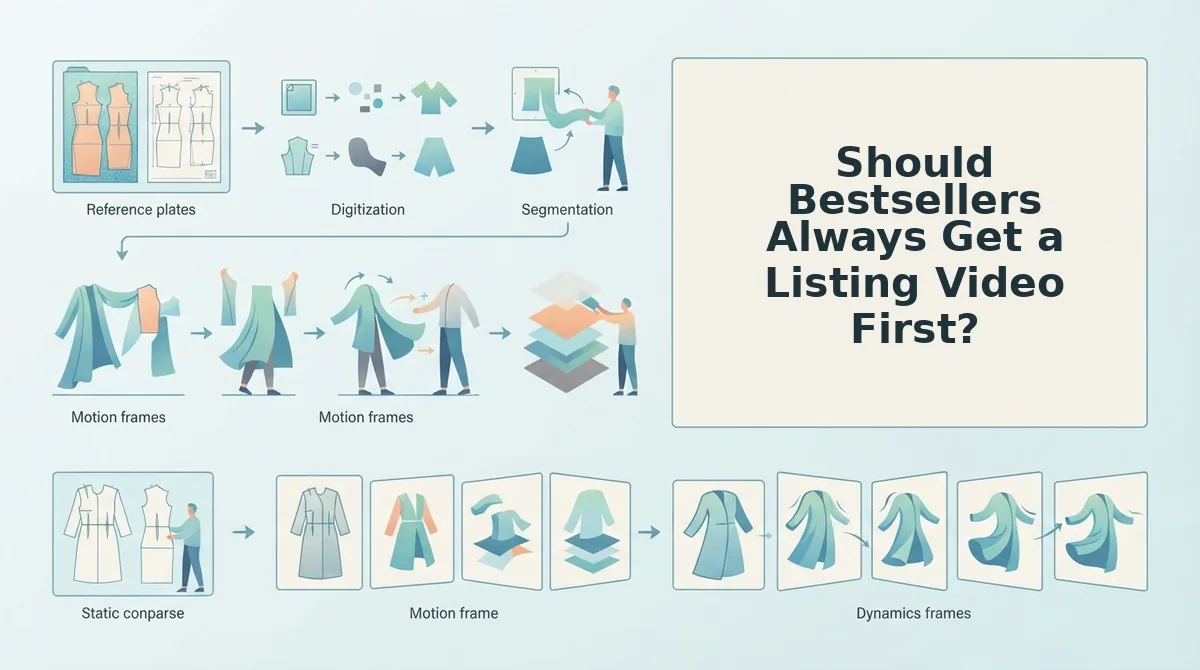
| Quadrant | Photo Coverage | Movement Payoff | Action | Best for |
|---|---|---|---|---|
| Animate now | High | High | Generate in the first batch | Performance creative teams that need review-ready clips for Reels and TikTok testing |
| Light reshoot, then animate | Low | High | Add back, side, and detail shots, then generate | Merchandisers whose bestsellers have only a hero packshot, which is where many top sellers land |
| Batch later | High | Low | Queue for a bulk run after the priority SKUs | Shopify operators filling out PDP coverage on structured basics |
| Skip | Low | Low | Keep static imagery for now | Lean teams protecting production time for higher-payoff items |
If your shortlist leans toward the first two quadrants, you can turn product photos into video from stills you already own. After review, place the files in your product listing videos slots.
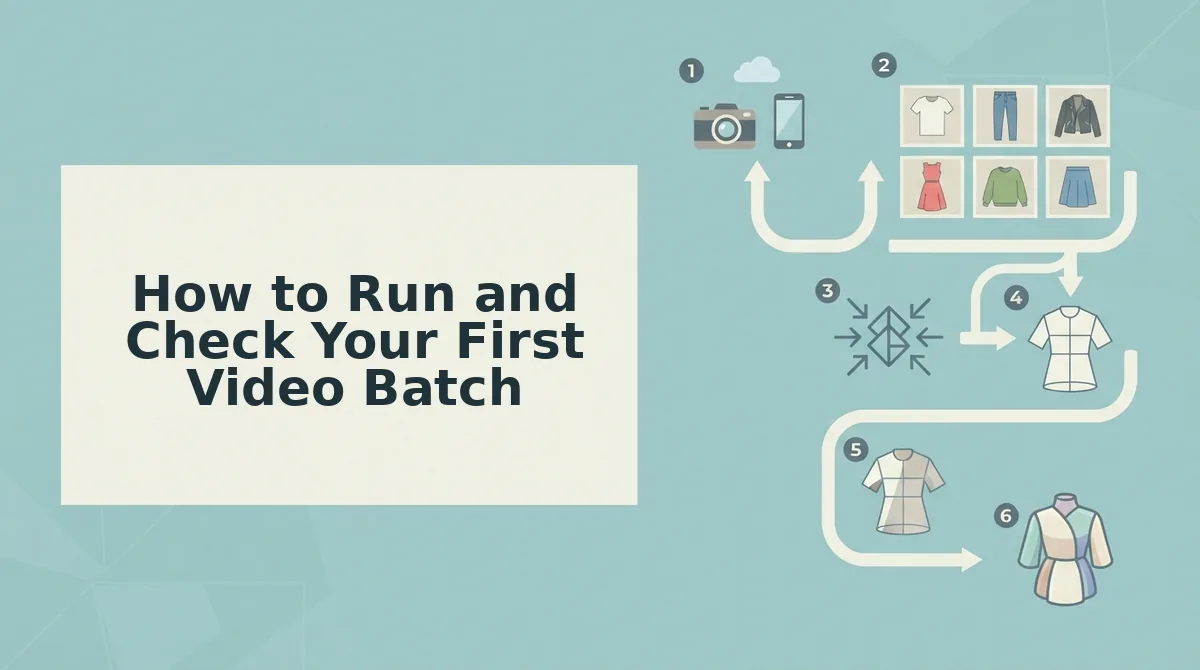
How to Run and Check Your First Video Batch
Now the practical part. Run the batch in five steps, then check every output against its source stills before it goes live.
- Score the SKUs. Apply the 3-gate triage and plot the results on the matrix. This keeps the batch limited to Animate-now items.
- Prep the stills. Upload one to six angles per item, including back and detail shots. More coverage gives the motion real reference points.
- Generate the videos. Create a file for each SKU. FashionUGC outputs the video and does not publish it.
- Review each output. Have a person compare every clip with its stills. This catches flaws before shoppers see them.
- Publish to the destination. Post approved clips to the PDP, Reels, TikTok, or Shorts. The tool does not promise results.
Approve a clip only if it passes these checks:
- The garment shape matches the stills.
- Hems and edges stay clean.
- The fabric moves believably.
- Ghost-mannequin interiors show no artifacts.
- The format follows the fashion video aspect ratios for the channel.
Worked example #3: A merchandiser has one strong image per SKU. Before generating, they shoot a back view and a fabric close-up for each priority item.
Build Your Shortlist and Start With the Animate-Now Quadrant
Your first listing videos should come from SKUs with strong photo coverage and high movement payoff, whether or not they are bestsellers. Sales rank decides the order only after the photos are ready.
Score the catalog and generate the Animate-now group first. Next, queue reshoots for high-movement SKUs with thin coverage, then batch the rest.
FashionUGC handles clothing only for now, and Beauty and Accessories are not yet available. Every file needs human review, and no video guarantees sales.
Upload your first Animate-now stills to the clothing video generator and put your best-photographed pieces in motion first.

Create
Turn the photos you have into a video.
Upload the garment, pick a length, and post the clip.