

Your product pages are sitting on a goldmine: clean, consistent, white background catalog photos that took hours to shoot and retouch, yet they do nothing but sit there while your competitors flood TikTok with motion. Can you turn white background catalog photos to product video without scheduling a single reshoot? Yes, and the white background you've been treating as "boring" is actually the single biggest technical advantage you have.
You already own the asset. The problem isn't your photography, it's that every tutorial you've found assumes you need to shoot new footage, rent lighting, or hire a creator. That's the wrong starting point. This guide walks you through a no-reshoot workflow that converts your existing stills into listing-ready motion, covers the exact photo requirements that make or break output quality, and reveals why that plain white backdrop reduces generation errors instead of causing them.
Here's the roadmap: first, what makes your current catalog photos video-ready (and the pre-generation checklist most brands skip). Then, how many source images you actually need, because the answer changes everything about your workflow. One surprising finding along the way: fewer photos can sometimes produce cleaner results than more. Keep reading to see why.
When you're ready to turn product photos into video, the platform ingests up to six angles per SKU and generates UGC-style motion you review before it goes anywhere.
What Makes White Background Catalog Photos Video-Ready?
A video-ready catalog photo is a still image with sufficient sharpness, visible garment edges, and consistent lighting that an AI motion generator can interpret as a clean subject layer. White backgrounds are not a limitation, they are the cleanest possible input because they create maximum contrast between garment and environment.
Think of a white background like a green screen that's already been keyed out. In traditional video production, editors spend hours removing backgrounds frame by frame. Your catalog photos arrive with that work already done. The AI doesn't need to guess where the hoodie ends and a busy street begins, it sees a crisp silhouette against a uniform field, which improves garment edge detection and reduces generation errors like warped hems or bleeding fabric textures.
The framework breaks into three advantages. First, clean separation: the subject is already isolated, so motion generation starts from a defined boundary. Second, no background cleanup: you skip the retouching pass that lifestyle photos require before they can be animated. Third, consistent SKU presentation: every product in your catalog shares the same visual baseline, which means the generated videos look like a cohesive collection rather than a patchwork of shoots.
For a deeper breakdown of what makes source imagery perform well, see this guide on product photos for AI fashion video. The platform accepts one to six stills per item, including flat lays, on-body shots, and fabric detail angles, and converts them into short-form motion you review before publishing.
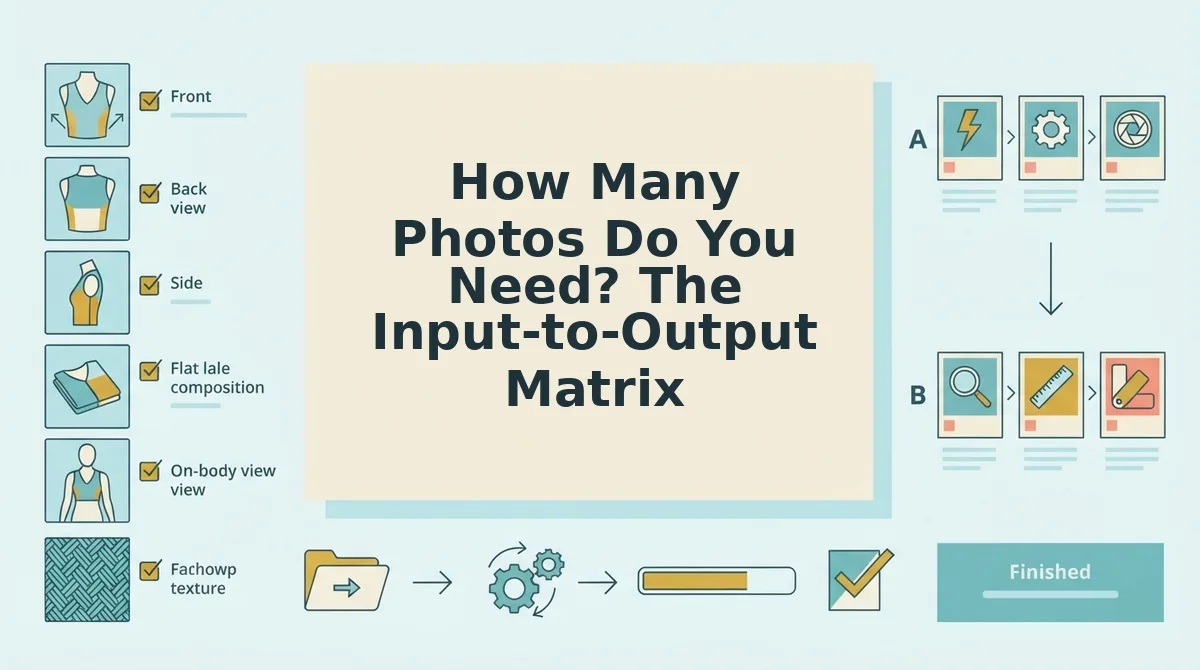
How Many Photos Do You Need? The Input-to-Output Matrix
The minimum is one photo, but output quality scales predictably with input count: one photo produces basic motion, two to three photos enable angle transitions, and four to six photos unlock full garment drape and fabric detail rendering.
Here's where most guides stop, they tell you how to shoot, not how many shots you actually need. The honest answer is that more photos don't always mean better video. A single high-quality front shot can generate subtle sway and zoom motion that outperforms six poorly lit angles. The relationship is about information density, not raw quantity.
| Photo Count | What the AI Can Generate | Output Quality | Best For |
|---|---|---|---|
| 1 photo | Basic motion: subtle sway, zoom, fabric ripple simulation | Acceptable for quick tests; limited angle variety | Merchants testing the workflow on a single SKU before committing to full catalog production |
| 2-3 photos | Angle transitions: front-to-back rotation, side profile reveals | Good; natural movement between viewpoints | Shopify stores with existing front/back/side catalog shots who want listing video without new photography |
| 4-6 photos | Full garment drape, fabric detail close-ups, multi-angle storytelling | Highest; closest to native UGC creator footage | Performance creative teams running paid social ads where output quality directly impacts CAC |
Competitor tools that accept only a single image are genuinely useful for rapid iteration, that's a legitimate strength when you need 50 rough cuts in an afternoon. But they can't render what they can't see: back details, side seams, and fabric texture remain invisible to the model. The multi-angle ingestion approach trades a few extra uploads for output that holds up under scrutiny on a product page.
For a full walkthrough of photo count decisions, read how many photos for product listing video. Next, the workflow that turns those catalog stills into a finished listing video.

The Workflow: From Catalog Still to Listing Video
Turning a white background catalog photo into a PDP-ready video takes under 10 minutes once you know the sequence. You need the original high-resolution stills, a browser, and a FashionUGC account. Here is the exact workflow, using a white background flat lay of a shirt as the worked example.
- Open the FashionUGC dashboard and click "New Project." Name the project with the SKU or product title so the output file is traceable. You should see an empty upload panel with a 1-6 photo counter.
- Upload your catalog stills. Drag in the front flat lay, back flat lay, and one fabric detail shot of the shirt. The platform accepts JPG, PNG, and WebP files up to 20MB each. A green checkmark appears next to each successfully ingested image.
- Select "9:16 Vertical" as the output format. This matches Reels, TikTok, and most mobile PDP video slots. The preview canvas immediately re-frames to portrait orientation.
- Choose "Garment Motion" instead of "Slideshow." Template tools animate the frame, zooming, panning, crossfading between stills. AI generation animates the garment itself: the shirt's hem lifts, the fabric drapes, the collar settles as if worn. Select Garment Motion to get natural drape rather than a Ken Burns effect.
- Set motion intensity to "Subtle" for marketplace listings. Amazon-style PDP videos perform best with restrained movement that reads as fabric behavior, not special effects. You should see the preview loop update within 30 seconds.
- Click "Generate" and wait 2-4 minutes. The platform renders a 9-12 second clip. A progress bar shows frame-by-frame completion; you receive a notification when the MP4 is ready.
- Review the output and download. Check that the shirt's color matches the original catalog photo and that no artifacts appear at the edges. Download the MP4 and upload it to your PDP media slot or ad manager.
For a deeper walkthrough of this exact input type, see the flat lay to fashion video guide. If you are producing these at SKU scale for marketplace listings, the product listing videos use case covers batch workflows and naming conventions.
A white background flat lay of a shirt becomes a 9:16 listing video with natural drape in roughly five minutes of active work. The flat lay's clean edges let the AI isolate the garment silhouette immediately, so the generated motion reads as fabric physics rather than frame animation. The output is a single MP4 file that you review before it goes anywhere, no auto-publishing, no platform dependency.
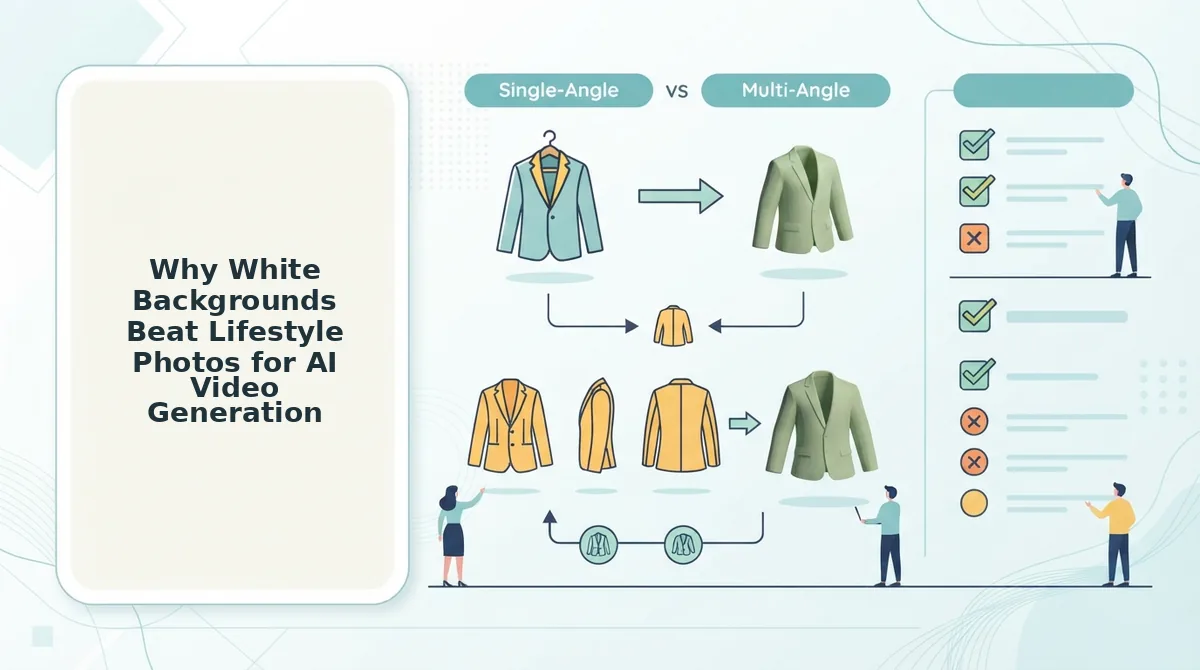
Why White Backgrounds Beat Lifestyle Photos for AI Video Generation
White background catalog photography is the highest-converting input for AI garment video because it removes segmentation ambiguity. A clean white field lets the model isolate the garment silhouette in one pass, with no competing edges from furniture, foliage, or model limbs.
Edge detection is the technical term for how software finds the boundary between the garment and everything else. On a white background, that boundary is a high-contrast, predictable line. On a lifestyle photo, the same shirt might share edges with a chair arm, a shadow, or another garment, and the AI has to guess where the product ends. Think of it like cutting a shape out of colored paper: a white sheet behind the shirt is like having a printed outline to follow, while a busy background is like cutting blindfolded.
This is the part where conventional wisdom gets it wrong. Many brands assume lifestyle photos are "richer" inputs because they show context. But for AI video generation, context is noise. The model's job is not to understand the scene, it is to animate the garment. Every non-garment pixel is a liability that can bleed into the motion field and produce warped fabric or ghosting artifacts.
White backgrounds are also the standard for Amazon-style listings, so generated videos match marketplace expectations without retouching. A video produced from a white background still inherits the listing's visual grammar: clean, product-forward, no distracting environment. That consistency matters when the same video file appears on a PDP, in a Google Shopping feed, and in a retargeting ad. For brands scaling this across catalogs, the ecommerce product videos use case details how white background inputs reduce per-SKU cleanup time to near zero.
FAQ: White Background Catalog Photos to Product Video
White background catalog photos are the most reliable input for AI-generated PDP video because they eliminate segmentation errors and match marketplace listing standards. These answers cover the four questions brands ask most before starting.
Do I need to remove the white background before generating video?
No. The white background is an asset, not an obstacle. AI video generators use the high-contrast edge between garment and white field to isolate the product automatically. Removing the background first would actually introduce transparency artifacts and make the segmentation task harder.
Will the video look like a slideshow?
No, if you select garment motion rather than a template slideshow mode. Slideshow tools animate the frame with zooms and pans. AI generation animates the garment itself: fabric drapes, hems lift, collars settle. The output reads as motion capture of the clothing, not a photo montage.
How long does generation take for one product?
Expect 2-4 minutes of render time per 9-12 second clip after upload. Upload and settings take another 2-3 minutes. A single SKU goes from catalog still to finished MP4 in under 10 minutes of active work, which scales to roughly 40-50 products per day for one operator.
Does this work with ghost mannequin photos?
Yes, with one caveat. Ghost mannequin shots, where the garment appears to float with the interior hollowed out, work well because the white background and clean silhouette are already present. The AI fills the hollow interior with natural drape during generation. See the ghost mannequin photos to PDP video walkthrough for settings that preserve collar and shoulder structure.
Your Catalog Photos Are Already Enough
White background packshots are not a limitation. They are the cleanest input you own. No reshoot, no background removal, no styling team. The same stills sitting in your Shopify product gallery can become motion-ready PDP video in a single generation pass.
The open loop from the start resolves here: the bottleneck was never your photography. It was the assumption that video requires video production. It doesn't.
Three next steps, in order of leverage:
- Start generating now. Upload one to six white background catalog photos into the AI fashion UGC video generator and review the first output before scaling to your full catalog.
- Expand your input library. If flat lays are part of your existing asset mix, the flat lay to fashion video guide shows how to convert them into the same PDP format.
- Test one SKU against your current PDP. Compare engagement on the video variant before committing to a catalog-wide rollout.
Every white background photo you already paid for is dormant video inventory. The brands that win in 2026 will be the ones who stop treating catalog stills as finished assets and start treating them as raw material.
“A white background catalog photo is not a static image waiting for a reshoot, it is a video waiting to be generated.”