
Every flat lay you shoot twice costs a full reshoot cycle, styling, steaming, lighting, and retouching, because the first pass looked warped the moment it moved. That's the hidden tax in apparel catalogs: static images that pass QC on a lightbox but fall apart in motion. If you've watched a garment's hem ripple unnaturally or its proportions skew in a generated clip, the problem isn't the AI. It's the input.
You already own the photography. What you need is a prep standard that makes flat lay to fashion video conversion predictable, not a gamble. This playbook gives you exactly that: a 7-point generator-ready checklist, a direct comparison of flat lay versus ghost mannequin inputs, and the angle count that actually matters.
Here's the part most tutorials skip: the AI interprets proportion from what it can see, not from what you know is there. One framing mistake, a hem cropped by two inches or a shadow pooling under a sleeve, changes how the generator reads the garment's shape. We'll show you the specific pass/fail criteria that prevent that, including one prep rule that eliminates the warped-hem artifact almost entirely. The platform accepts one to six images per garment, but no competitor specifies what those images must contain. This article does.
By the end, you'll have a repeatable workflow that turns existing catalog packshots into UGC-style motion, without reshoots, without a model, and without guessing which stills will survive the transition to video.
What Makes a Flat Lay Generator-Ready?
A generator-ready flat lay is a top-down garment photo whose lighting, contrast, framing, and hem visibility let an AI video generator read the item's true proportions and produce motion without warping. If the AI can't see the full silhouette, it guesses, and guessing is where distortion starts.
Think of the generator like a tailor measuring a suit. A tailor needs the jacket laid flat, fully visible, with no folds hiding the shoulder seam and no shadow swallowing the hem. Hand them a crumpled garment half-covered by a sleeve and they'll estimate. The AI does the same thing, only faster and with less patience for ambiguity.
The 7-Point Generator-Ready Checklist
Run every flat lay through these pass/fail checks before upload. If any item fails, fix the photo, don't hope the AI compensates.
- Full silhouette visible: Every hem, cuff, and collar edge is inside the frame with at least 5% margin on all sides. Fail if any edge touches the frame boundary.
- Even, shadow-free lighting: No hard shadows under sleeves, collars, or waistbands. Fail if a shadow obscures any seam line.
- Contrast between garment and background: The item's edges are clearly distinguishable from the surface. Fail if any edge blends into the background for more than two inches.
- Flat, wrinkle-controlled surface: Fabric lies smooth with no folds crossing seams or distorting the outline. Fail if any fold changes the visible shape of a hem or neckline.
- True top-down angle: Camera is perpendicular to the surface, not tilted. Fail if the garment appears trapezoidal instead of rectangular.
- Consistent scale across angles: If shooting multiple views, the garment occupies roughly the same frame proportion in each. Fail if one angle appears 30% larger or smaller than another.
- Neutral color temperature: Whites are white, not yellow or blue. Fail if fabric color shifts noticeably from the actual product.
Christian Noel's flat lay tutorials cover pinning techniques and overhead rigs thoroughly, but they stop at photography, they never connect prep decisions to how an AI interprets the image. That's the missing bridge. A perfectly pinned flat lay can still fail the generator if the contrast is too low or the hem is cropped.
Why Prep Determines Output Quality
The generator extracts proportion, drape, and construction cues from visible geometry. When a hem is hidden, the AI extrapolates, and extrapolation is where sleeves grow, necklines drift, and fabric stretches unnaturally. When lighting is uneven, the AI may read a shadow as a fold, adding phantom wrinkles to the motion.
For a deeper breakdown of which product photos convert cleanly, see the product photos for AI fashion video guide. The short version: a generator-ready flat lay is not a styled editorial shot. It's a technical capture, closer to a measurement photo than a lookbook image.
One self-contained answer worth bookmarking: What is the minimum requirement for a flat lay to work in an AI fashion video generator? The garment must be fully visible with all hems, cuffs, and collar edges inside the frame, lit evenly with no hard shadows, and photographed from a true top-down angle. The background must contrast clearly with the garment edges, and the fabric should lie flat without folds crossing seams. If any edge is cropped or obscured, the AI will guess at the missing geometry and produce visible distortion in the generated motion. Scale consistency matters when uploading multiple angles, a garment that appears significantly larger in one frame than another forces the generator to reconcile conflicting proportion data, which degrades output quality.
Flat Lay vs. Ghost Mannequin: Which Input Produces Better Motion?
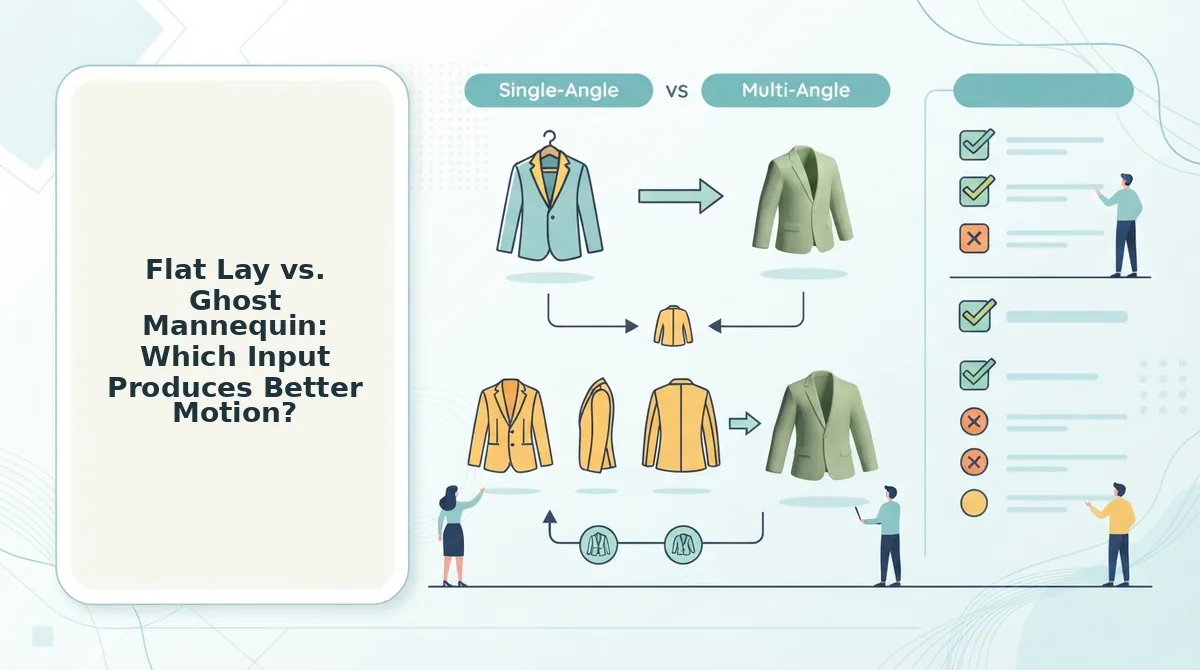
Flat lays give the AI a clean, undistorted silhouette to read, while ghost mannequin shots provide 3D construction cues, and the better input depends on what kind of motion you want. For drape and fabric movement, flat lays win. For proportion accuracy on structured garments, ghost mannequin stills hold the edge.
Both input types are accepted by the platform, and each has legitimate strengths. Flat lays show the garment laid flat, giving the AI an unobstructed view of the full outline, seam placement, and print alignment. Ghost mannequin shots show the garment's 3D shape without a model, the item is photographed on an invisible form, then the interior is removed in post, leaving a hollow garment that holds its natural volume.
Botika and Modelia cover flat lay to model conversion, but no competitor treats ghost mannequin stills as a distinct input type with its own prep requirements. That's a gap worth exploiting if you already shoot ghost mannequin imagery for PDPs.
| Comparison Factor | Flat Lay | Ghost Mannequin |
|---|---|---|
| What the AI sees | 2D silhouette, full outline, flat fabric surface | 3D garment shape with volume, drape, and construction |
| Drape quality in output | Strong, fabric movement reads cleanly from flat surface | Moderate, existing drape can conflict with generated motion |
| Proportion accuracy | High for width and length; depth must be inferred | High for all dimensions, the 3D form is already present |
| Motion realism | Good for flowy fabrics, dresses, and tees | Better for structured pieces like blazers, denim, and outerwear |
| Prep complexity | Low, flat surface, even light, full visibility | Higher, requires invisible form, interior cleanup, consistent lighting |
| Common failure mode | Warped hems when edges are cropped or shadowed | Stiff motion when the AI preserves too much static form |
| Best for | DTC brands with flowy apparel, dresses, and graphic tees | Brands selling structured garments with existing ghost mannequin PDP assets |
Best for flat lay: DTC apparel brands shooting flowy fabrics, dresses, skirts, oversized tees, and lightweight knits, where fabric movement is the hero of the video. If your catalog already has clean top-down shots, flat lays convert with minimal prep.
Best for ghost mannequin: Brands selling structured garments, blazers, denim jackets, button-downs, and tailored pieces, where proportion accuracy matters more than fabric flow. If you already shoot ghost mannequin imagery for product pages, repurposing those stills for video is a natural extension. See the ghost mannequin photos to PDP video workflow for the full conversion path.
One self-contained answer: Do ghost mannequin photos work in an AI fashion video generator? Yes, ghost mannequin stills work as input for AI fashion video generation, and they offer a distinct advantage for structured garments. Because the photo already contains 3D volume and construction cues, the generator can preserve accurate proportions without inferring depth from a flat image. The tradeoff is motion realism, ghost mannequin shots can produce stiffer output because the AI must reconcile the existing static drape with the motion it generates. For flowy fabrics, flat lays typically yield more natural movement. For tailored pieces where fit accuracy matters, ghost mannequin inputs produce more reliable proportions.
The input type you choose sets the ceiling for output quality, but neither matters if you're feeding the generator too few angles to work with.

How Many Angles Do You Actually Need?
FashionUGC accepts between one and six still photos per garment, and the number you upload directly controls the quality of motion the AI can generate: one image produces basic movement, three images unlock natural drape, and six images enable full rotation.
- One image: basic motion only. A single flat lay or packshot gives the AI enough visual information to create subtle movement, a gentle sway, a soft zoom, or a fabric ripple, but the model must infer what the back, sides, and interior structure look like. Use this only when you have no other angles available or when testing whether a garment is worth investing more upload time in.
- Three images: natural drape and believable weight. Uploading a front flat lay, a back flat lay, and one detail or side angle lets the generator understand how the garment falls across multiple planes. This is the minimum threshold for motion that reads as authentic UGC rather than a stretched still, because the AI can interpolate how fabric moves between the known views.
- Six images: full rotation and near-reshoot quality. The maximum input set, front, back, both sides, a detail shot, and an on-body or alternate angle, gives the model enough coverage to simulate a handheld camera moving around the garment. Output at this level supports 360-degree-style motion, layered fabric behavior, and the kind of organic framing shifts that perform well in paid social creative.
- Match angle count to output intent. If you are generating a three-second TikTok hook, one or three images may be sufficient; if you are producing a product page video that must survive close inspection, upload all six. The input count is not a quality setting you toggle, it is the raw material the model works from, and underfeeding it produces visible artifacts.
- Consistency across a catalog matters more than per-SKU perfection. A 200-SKU catalog shot with the same three-angle setup will generate more predictable, on-brand output than a catalog where some items have six angles and others have one. Standardize your flat lay capture process before you scale generation, because the AI inherits whatever inconsistency exists in your source photography.
For a deeper breakdown of how input count affects output quality, see our guide on how many clothing photos for AI fashion video.
From Flat Lay to Fashion Video: Step-by-Step Workflow
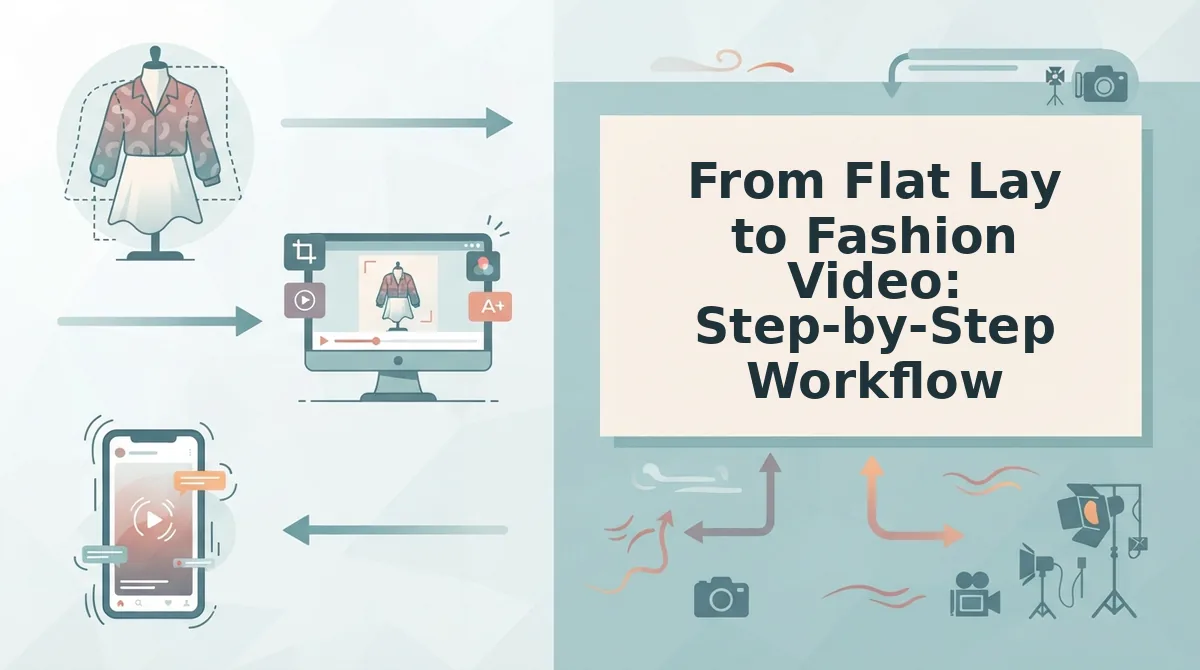
This workflow takes a flat lay catalog photo set through prep and generation to a finished UGC-style fashion video, with no reshoot required. You need: a FashionUGC account, flat lay images in JPG or PNG at 1000px or larger on the shortest side, and roughly 10-15 minutes per garment for the first run.
- Audit your flat lay source images against the generator-ready checklist. Open each image and check for wrinkles, off-axis angles, inconsistent lighting, and background bleed. A Shopify merchant with 200 SKUs and flat lay catalog photos needs motion for TikTok ads without a reshoot, the audit step is what makes the existing library usable instead of forcing a new shoot. Expect to flag 10-20% of images for quick re-editing or re-shooting on a phone.
- Upload one to six images per garment into the FashionUGC workspace. Click the upload area, select your files, and confirm the order: front first, then back, then sides, then detail. The platform reads the sequence to understand garment geometry, so misordered uploads produce visibly confused motion. You should see thumbnail previews with a green checkmark on each successfully ingested image.
- Select the UGC motion preset that matches your ad placement. Choose from handheld-style sway, zoom-and-pan, or full rotation depending on whether the output is for a TikTok hook, a Reels mid-funnel ad, or a product page hero. The preset determines camera behavior, not garment physics, so pair it with the angle count you uploaded, a one-image upload with a full-rotation preset will produce artifacts.
- Generate a test video for one SKU before batch processing. Click Generate and review the 10-15 second output for warped proportions, stiff drape, color shift, or ghosting. This single-SKU test takes under two minutes and reveals whether your source images need re-editing before you commit to generating all 200 SKUs. Success looks like natural fabric movement with no visible distortion at the garment edges.
- Batch-generate the remaining SKUs and review outputs in sets of ten. Use the batch queue to process your catalog, then review outputs in small groups rather than one at a time. A human should approve every video before it goes to an ad account or product page, the tool creates the file, but you decide what ships. Flag any output with visible defects and regenerate with a corrected source image.
- Export the approved videos in platform-native aspect ratios. Download 9:16 for TikTok and Reels, 1:1 for feed placements, and 16:9 for product pages or YouTube Shorts. The export step is where you turn product photos into fashion video files ready for your media buyer or merchandising team to deploy.
The 5 Most Common Flat Lay Video Failures (and How to Fix Them)
Most flat lay video defects trace back to the source image, not the generation engine. Here are the five failure modes we see most often, ranked by frequency, with the input cause and the fix for each.
- Warped proportions. The garment stretches, bulges, or bends unnaturally during motion. This is caused by wrinkles in the flat lay and off-axis camera angles that force the AI to guess at geometry. Fix it by steaming or pressing the garment flat, shooting directly overhead at 90 degrees, and re-uploading the corrected image.
- Stiff drape. The fabric moves like cardboard instead of cloth, with no secondary motion at hems or sleeves. This happens when you upload only one image or when the source photo has hard, directional shadows that flatten the fabric's texture. Fix it by uploading at least three angles and shooting in soft, diffused light so the AI can read fabric weight.
- Color shift. The output video shows a noticeably different garment color than the source photo. This is caused by mixed lighting across your image set, one shot under warm store lights, another under cool daylight. Fix it by white-balancing all images for a single SKU in the same session and using consistent lighting for every angle.
- Background bleed. Edges of the original background or surface texture appear inside the garment or around its outline during motion. This happens when the flat lay background is not cleanly separated or when the garment fills too little of the frame. Fix it by shooting on a solid, high-contrast background and cropping so the garment occupies at least 70% of the frame.
- Ghosting. Faint duplicate outlines or semi-transparent fabric layers appear during rotation or sway. This is caused by uploading images where the garment is positioned differently in each frame, the AI tries to reconcile conflicting positions. Fix it by keeping the garment in the same position and orientation across all uploaded angles, changing only the camera side.
If you are seeing these defects in videos generated from existing product photography, the root cause is almost always the input image set rather than the AI model. Warped proportions, stiff drape, color shift, background bleed, and ghosting each map to a specific, fixable source-image problem: wrinkles and off-axis angles cause warping, single-angle uploads cause stiffness, mixed lighting causes color drift, poor background separation causes bleed, and inconsistent garment positioning causes ghosting. Correcting the source image and regenerating resolves the defect in nearly every case, which means the fastest path to clean output is a disciplined flat lay capture process, not repeated regeneration attempts. For a broader look at how these issues affect product listing videos across apparel ecommerce, see our breakdown of apparel product listing video mistakes.
Now that you know what breaks, here are the answers to the questions brands ask most before their first batch.
Flat Lay to Fashion Video FAQ
Flat lay to fashion video conversion works when source images meet a minimum standard: consistent lighting, neutral backgrounds, and at least three angles per garment. The answers below address the questions apparel teams ask most before uploading their first catalog batch.
How do I turn a flat lay into a fashion video?
Upload one to six flat lay photos of a single garment to a clothing video generator, select a UGC-style motion template, and download the rendered video file. The AI interprets fabric drape, sleeve structure, and hemline from the stills, then applies motion, camera movement, and scene context to produce short-form output.
Why does my flat lay look distorted in the generated video?
Distortion occurs when source photos are shot at steep downward angles, contain lens warp at the edges, or include wrinkled fabric that the AI misreads as structural folds. Shoot flat lays with the camera parallel to the garment, use a 50mm equivalent focal length, and steam or press items before photographing.
Can I use ghost mannequin photos instead of flat lays?
Yes. Ghost mannequin images often produce better motion than flat lays because they preserve the garment's three-dimensional shape, shoulder slope, and drape. Flat lays work best for lightweight items like tees and dresses, while ghost mannequin shots handle structured pieces like blazers and outerwear more accurately.
How many flat lay photos do I need for one video?
Three is the practical minimum: front, back, and one detail or texture shot. Six angles produce the most reliable motion because the AI has more reference points for fabric behavior, collar structure, and hem movement. Fewer than three images typically yields generic motion that does not match the actual garment.
What background works best for flat lay videos?
A seamless, matte background in white, cream, or light gray produces the cleanest subject separation and the most accurate edge detection. Busy or textured backgrounds force the AI to guess where the garment ends, which creates halo artifacts and floating fabric fragments in the final video.
Why does my generated video look different from the product photo?
Color shifts happen when source photos have mixed white balance or were shot under different lighting conditions. Shoot all angles for one garment in the same session under identical light, lock white balance manually, and avoid mixing flash and natural light in a single set of uploads.
Flat Lay Video Is a Prep Problem, Not a Magic Problem
Every failure mode covered in this article traces back to one variable: source image quality. The AI does not invent fabric behavior, sleeve drape, or hemline movement from nothing. It extrapolates from what you upload. A wrinkled, inconsistently lit flat lay produces a distorted, unconvincing video every time, regardless of how advanced the generator is.
The brands getting usable UGC-style motion from their catalogs treat flat lay photography as a video pre-production step, not an afterthought. They shoot three to six angles per garment under locked lighting, on neutral backgrounds, with the camera parallel to the fabric. That standard is the difference between a video that looks like a product and one that looks like a glitch.
Your next step is to run one garment through the AI fashion UGC video generator using the prep checklist from this article. Upload your best three-angle set, review the rendered file, and compare it against a video made from your current unstandardized photos. The output is a video file you review before it goes anywhere, so nothing ships without your sign-off.
Standardize the prep, and the motion follows.