You export a floor-length gown in a 1:1 frame for the feed, and the hem is gone. The train that sold the dress now ends somewhere below the bottom edge.
That clipped hem is a framing problem, not a sewing problem. A square aspect ratio gives a tall garment far less vertical room than a portrait canvas does.
This guide shows how to fit full length gown in square video output without losing the hem or train. It covers the source stills you need, the framing steps, and a portrait check for when square is the wrong choice.
One counterintuitive point comes up at the end: squeezing the whole gown into a square can make it look worse.
To fit a full-length gown in a square video, start with a full-length front still that shows the entire hem. Leave headroom above the hairline and hem clearance below the train, then pad or letterbox the empty sides instead of zooming in. Switch to portrait when the whole silhouette must read clearly.
What Do You Need Before Framing a Gown in a Square Video?
Your source stills must show the full hem, because a clipped input produces a clipped output. Before you frame anything, check what a correct result should look like and gather the right reference angles.
A few terms used in this guide:
- Aspect ratio is the frame's width compared with its height.
- 1:1 means a square frame.
- Headroom is the space above the head or neckline.
- Hem clearance is the space below the hem.
- Train is the fabric that trails behind the gown.
| Gown height-to-width ratio | Approximate share of 1:1 frame width filled (top to bottom) |
|---|---|
| 2:1 | About 50% |
| 3:1 | About 33% |
| 4:1 | About 25% |
Illustrative calculation only, not measured data. Once you add headroom and hem clearance, the gown fills even less of the frame width. Wide empty sides are normal in square framing and do not mean you made a mistake.
- Full-length front still. This is your anchor image, with the hem fully in frame. Shoot it straight on so the vertical axis is easy to center.
- Full-length back still. This shows the closures, back drape, and how the train falls. Match the distance and lighting of the front still so the angles blend.
- Train or hem detail. This captures the sweep and edge finish that a wide shot shrinks. Save it for a later cut rather than forcing it into the full-length frame.
- Fabric close-up. This shows texture, beading, or sheen. Keep it sharp and evenly lit so the surface reads clearly in motion.
FashionUGC accepts 1 to 6 images per generation, so all four angles fit in a single multi-angle upload. Ghost mannequin and flat lay inputs also work, as long as the hem and garment plates are sharp and visible. The flat lay to fashion video guide covers that workflow.
Clear lighting, visible hems, and sharp garment plates determine output quality. Low-resolution stills do not produce production-ready motion, so replace soft or blurry images before you upload.
How to Fit a Full-Length Gown in a 1:1 Frame Step by Step
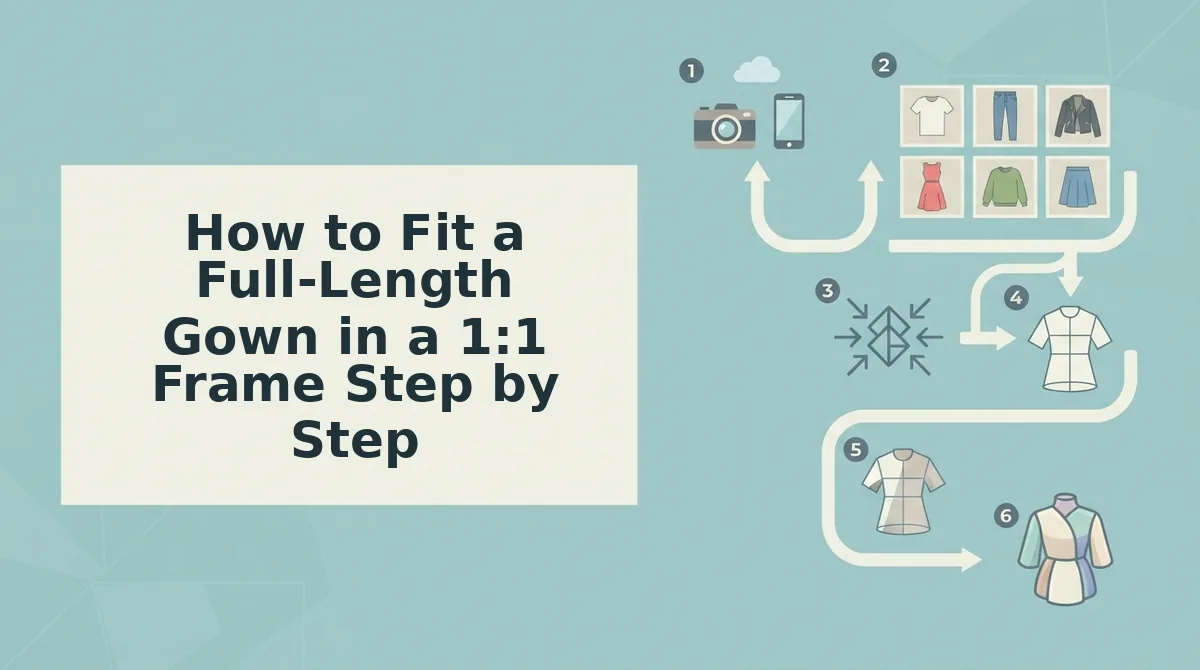
To fit a full-length gown in a 1:1 frame, lead with a full-length front still, center it vertically, and leave room above and below. Then pad the empty sides instead of cropping, and review the output before it goes anywhere.
Before you start: have the four reference stills from the previous section ready, each one sharp and well lit.
- Upload the full-length front still first (about 1 minute). Put it first in your upload set so it becomes the primary reference. The full gown, including the hem, should be visible in the preview.
- Center the subject on the vertical axis (about 1 minute). Align the model's center line, or the garment's center seam, with the middle of the square. The gown should sit evenly between the left and right edges.
- Leave headroom and hem clearance (about 2 minutes). Keep visible space above the hairline or neckline and below the hem or train. You should see a clear margin at both the top and bottom edges.
- Pad or letterbox the sides instead of zooming in (about 2 minutes). Fill the empty width with a solid or softly blurred background. The side space should look intentional, and the hem should stay intact.
- Add the detail stills for later cuts (about 1 minute). Upload the back, train, and fabric close-ups as supporting references. These angles can then appear in tighter shots without shrinking the full-length view.
- Generate and review (about 5 minutes). Create the video file and watch every frame for a clipped hem or train. A person reviews the output, because the generator does not publish anything.
How do I fit a gown in a 1:1 video without cutting it off? Start with a full-length front still that shows the entire hem and train, because a clipped source image produces a clipped video. Center the gown on the vertical axis of the square, and leave clear space above the hairline and below the hem. The gown will fill only part of the frame width, so fill the empty sides with a padded or letterboxed background rather than zooming in. A vertical crop removes the hem, while padding keeps it visible. Use detail stills for separate close-up cuts.
This framing work pays off downstream. The fashion product video generator preserves garment design across frames, so your input framing carries through the motion.
Once you have a render, verify it frame by frame.
How to Check the Hem Survived and When to Switch to Portrait
Scrub the output frame by frame and confirm that the hem, train, and headroom stay inside the edges throughout. If the gown only fits 1:1 by shrinking until the fabric stops reading, switch to portrait.
Hem review checklist before export
- The hem and train are fully visible in every frame, including mid-motion.
- Headroom is intact, with no crop at the crown or neckline.
- The garment is not shrunk past the point where drape, texture, and embellishment still read.
Worked example #3: The hem clips during a turn. Re-upload a full-length still that shows the complete hem, then generate again. Patching the crop in an editor will not restore fabric that was never in the input.
| Garment | 1:1 | 4:5 | 9:16 |
|---|---|---|---|
| Midi | Full hem visible | Recommended | Full hem visible |
| Maxi | Detail sacrificed | Full hem visible | Recommended |
| Gown with train | Detail sacrificed | Detail sacrificed | Recommended |
Square or portrait for maxi dresses and gowns? Use portrait. A square frame has equal width and height, while a standing gown is much taller than it is wide. To fit the full height, the gown has to shrink until it fills only a narrow vertical strip, which leaves empty space on both sides and very few pixels for lace, beading, or drape. A portrait frame puts that space above and below the figure instead, so the hem and train fit at a larger scale. Save square for moments where width matters as much as height, such as a bodice, a neckline, or a fabric close-up.
Each format has a clear best fit:
- 1:1 is best for merchandisers building bodice and detail shots for grid layouts.
- 4:5 is best for social teams showing midi and maxi silhouettes in the feed.
- 9:16 is best for performance creative teams running Reels, TikTok, and Shorts. It is the vertical motion this clothing video generator is built around.
Don't force a gown into 1:1. Generate the full silhouette in portrait, then cut square detail moments from the same set of stills. For per-placement guidance, see the fashion video aspect ratios guide.
Gown Framing FAQ
These answers cover the gaps left by the sections above: format support, flat lays, trains, and product categories.
Does FashionUGC support 1:1 output, and what are its limits?
The site does not state its supported aspect ratios or length limits. What is confirmed is that FashionUGC works with clothing, creates a video file, and leaves review to a person. It does not publish anywhere or promise ad performance.
Can I use a flat lay for a full-length gown?
Yes, as long as the full length and the hem are visible and sharp. Adding a full-length front still alongside the flat lay gives the generator a clearer read of the silhouette and how the gown should fall.
Will a train be cut off if my reference photo crops it?
Yes. The output follows the framing of your input, so a cropped train stays cropped. Include a still that shows the full train or hem detail before you generate.
Can I animate accessories styled with the gown?
Not as a separate category yet. Clothing is the live category, and Beauty and Accessories are not available. Treat the gown itself as the subject of the video.
Your Next Step for Gown Videos That Keep the Hem
Most clipped hems trace back to your source stills, not to the square frame. Fix the inputs, then pick the frame by placement instead of forcing every gown into 1:1.
- Audit your gown SKUs. Flag any item that lacks a full-length front or back still showing the complete hem and train.
- Choose the frame per placement. Use the matrix above: portrait for the full silhouette, square for bodice and detail moments.
- Review every output before export. A person checks for hem clipping, headroom, and fabric legibility before the file goes anywhere.
You already own the photography this needs. Turn clothing photos into video and produce SKU-level motion from your existing catalog stills, with no reshoot required.