


You have a catalog of sharp packshots, a listing refresh already due, and no room in the budget for a reshoot day. So the real question inside any capcut symphony vs fashionugc listing video comparison is not which editor ships nicer templates. It is which one can make a garment look like it hangs and moves on a product page.
Those are separate jobs. A listing video answers how a fabric falls, stretches, and drapes for a shopper who is already on the PDP. A promo ad buys attention in a feed. All five tutorials visible around this topic teach the ad job, which is how sellers end up with a caption-stacked clip that never addresses the clothing.
This comparison starts from that gap. You get the verdict first, then the criteria table behind it, then a plain account of what each tool does to a still photo. One finding surprises most buyers: the deciding factor is motion layer, not feature count.
See the output side first â a fashion UGC generator working from photos you already own.
Which Tool Fits a Clothing Listing Video
The deciding factor is which motion layer the listing needs. A PDP video that has to show drape, hem fall, and fabric behavior belongs in FashionUGC. A clip that needs captions, transitions, and pan-and-zoom over stills belongs in CapCut Symphony. Choose by motion type, not by feature count.
That verdict is auditable. Work down the criteria in the table before committing either way.
| Criterion | FashionUGC | CapCut Symphony | ||||||||||||||||
|---|---|---|---|---|---|---|---|---|---|---|---|---|---|---|---|---|---|---|
| Source asset required | One to six stills of a single apparel item: front, back, side, flat lay, on-body, fabric detail | Stills for pan-and-zoom moves; apparel-specific intake needs verification | ||||||||||||||||
| Motion produced | Garment motion â drape, hem, textile behavior | Camera motion (pan, zoom) and overlay motion (captions, stickers, transitions) | ||||||||||||||||
| Edit control | Generation-focused; timeline-level editing needs verification | Template and timeline editing, auto captions | ||||||||||||||||
| Category scope | Clothing only | General product categories; apparel-specific templates need verification | ||||||||||||||||
| Publishing behavior | Produces the video file; does not publish to social or ecommerce platforms | Needs verification â not confirmable from a public source here | ||||||||||||||||
| Review requirement | A person reviews the output before it goes anywhere | Human review recommended; automated QC needs v
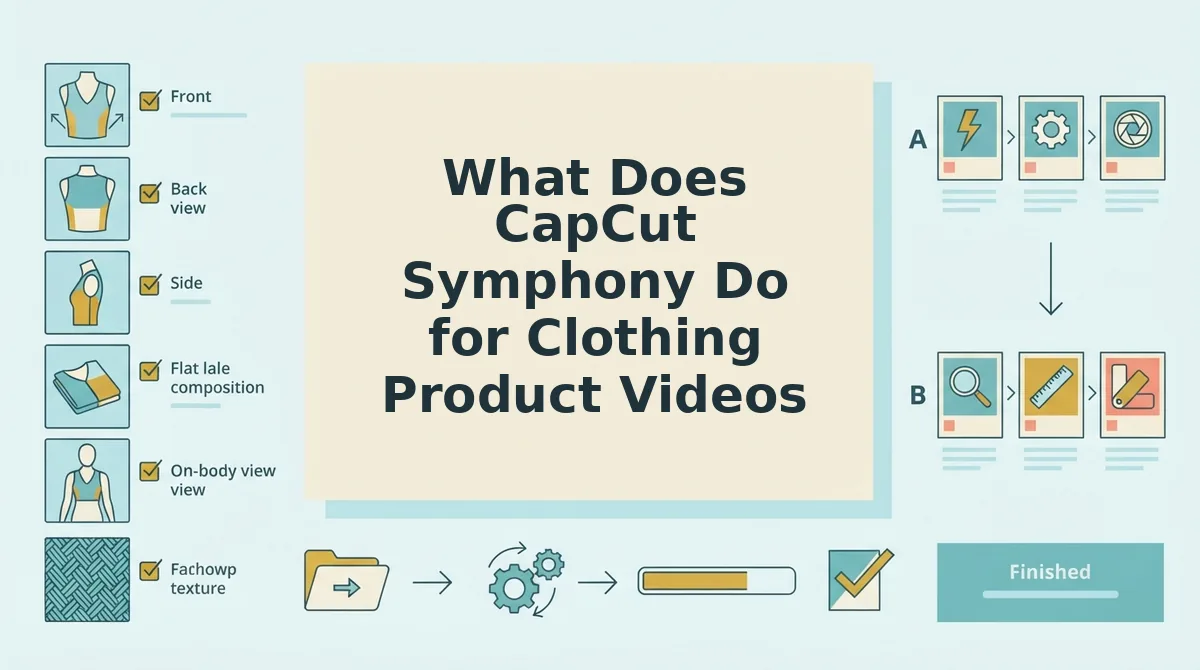 What Does CapCut Symphony Do for Clothing Product VideosCapCut Symphony is an AI-assisted ad-making environment that turns product stills into short marketing videos using templates, automatic captions, transitions, and preset camera moves. That is a narrower job than it sounds. The publicly documented surface is short: an AI ad maker aimed at product ads, text and caption layers, template-driven assembly, and pan-and-zoom motion applied to images you already have â the shape of it visible in tutorial walkthroughs and on CapCut's ad-maker page. Think of a framed print on a gallery wall. A camera can push in, drift sideways, and hold on a corner of the frame, but the print inside the glass never changes. A pan across a flat lay behaves the same way: it preserves the plate exactly as shot. Watch a clothing ad walkthrough and three moves repeat:
CapCut Symphony in One Self-Contained AnswerCapCut Symphony is an AI ad maker inside CapCut that assembles short product videos from still images, using templates for structure, automatic captions for text, transitions for scene changes, and pan-and-zoom for motion. For apparel sellers, it functions as an editing and overlay layer: it controls how frames are sequenced and what text sits on top of them. It does not model fabric, drape, or how a garment hangs on a body. The output is a video file that a person still reviews before it goes anywhere. Here's where it gets interesting: a pan across a flat lay preserves the plate, but it does not create hem movement or textile behavior. That is the honest boundary of a camera move â it changes where you look, not what the cloth is doing. Where the camera stops, garment motion has to begin, which is the work FashionUGC takes on. 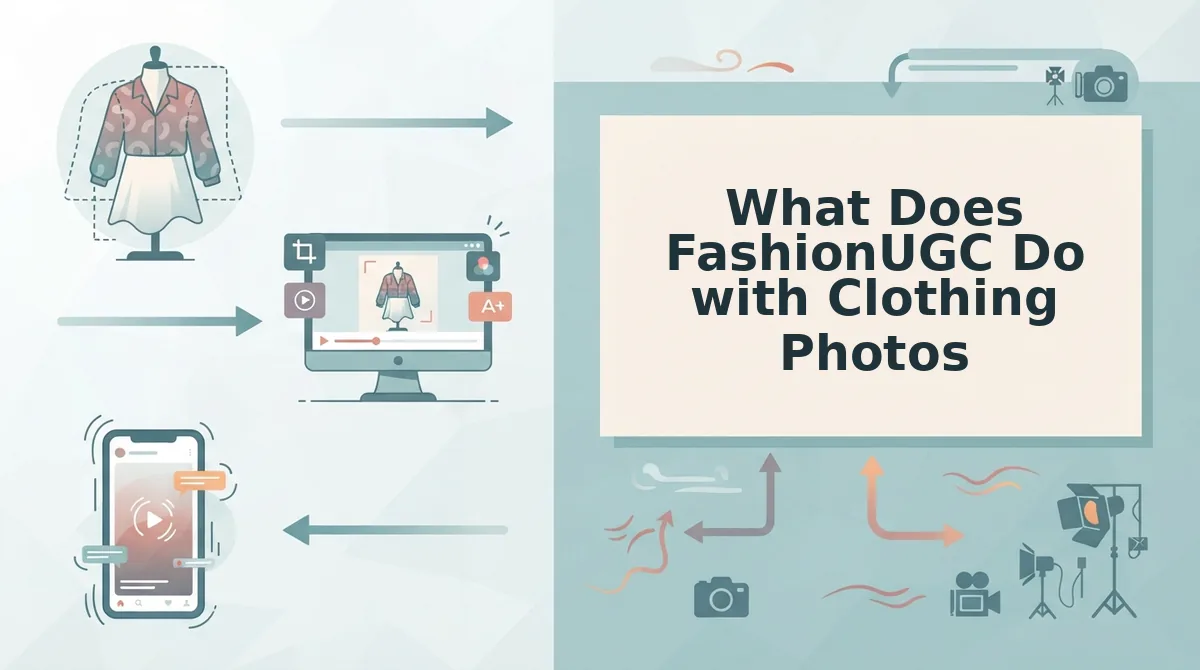 What Does FashionUGC Do with Clothing PhotosFashionUGC is a browser-based video generator that turns one to six photographs of a single garment into a short, UGC-style motion clip for Reels, TikTok, Shorts, paid ads, or a product page. The simple workflow is upload and review. You supply between one and six stills of one apparel item â front, back, side profile, flat lay, on-body, or a fabric detail crop â and the platform returns footage of that garment in motion. No studio booking, no model call sheet, no reshoot. The intermediate layer is the vocabulary the tool works in. A ghost mannequin plate is a product photo where the garment holds a body's shape while the wearer has been edited out; garment drape is how fabric falls, folds, and shifts under its own weight. Think of the output as a flipbook assembled from stills you already own rather than a film shoot: the frames exist, and the system sequences movement through them. The advanced part is not the software, it is the source material. Sharp garment plates, visible hems, and clean, even lighting determine how usable the resulting motion is. Treat that as an input requirement, not a promise about the outcome â a soft, blown-out flat lay gives the generator very little to move. Documented scope matters before you plan around it. Clothing is the live category; beauty and accessories are not available yet. The deliverable is a video file: the tool does not publish to any platform, makes no performance guarantee, and every output goes through human review before it is used anywhere. Our flat lay to fashion video guide covers which plates work best as a first upload. If you already have a catalog of packshots, load a flat lay plus two detail crops and see what the multi-angle ingestion produces on a garment you know well. 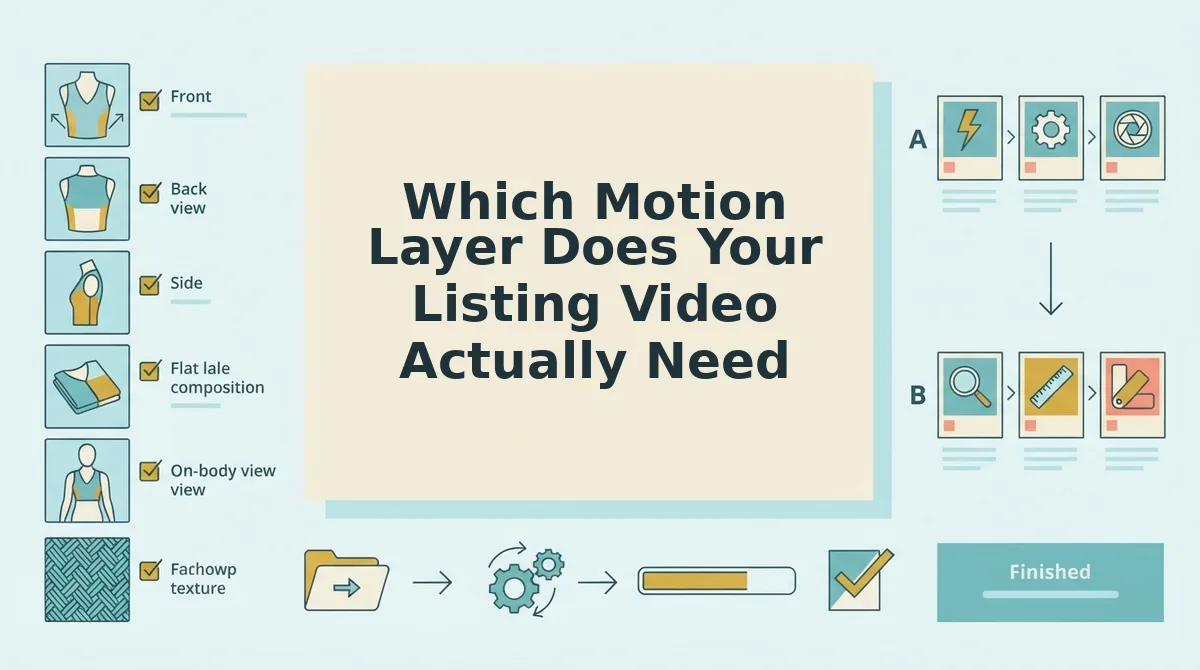 Which Motion Layer Does Your Listing Video Actually NeedListing video motion splits into three layers: camera motion (pan-and-zoom across a still), overlay motion (templates, captions, transitions), and garment motion (drape and textile behaviour). CapCut Symphony works in the first two. FashionUGC works in the third. Most clothing listing problems are garment-motion problems. Camera motion relocates the viewer's frame â a pan across a flat lay, a push-in on a hem, a slow zoom through a detail crop. Overlay motion adds elements on top of that frame: text, stickers, transitions, beat-synced cuts; a template is a pre-built bundle of exactly these. Garment motion changes the garment itself â fabric swinging, folding, settling, a sleeve lifting. The distinction is mechanical, not aesthetic: the first two rearrange pixels inside a frame that stays fixed, while the third changes what those pixels are doing.
Source assets map differently too. A flat lay carries clean garment geometry but no body context. A ghost mannequin plate carries shape and structure, which makes it the strongest input for drape. An on-body still carries fit and styling but can lock the frame around a pose the generator has to work within. Why a Pan-and-Zoom Cannot Show DrapeA camera move relocates pixels within a frame, so a hem stays fixed relative to the garment no matter how far the frame travels. Nothing about the fabric's behaviour between frames is invented, because no new frames exist. CapCut Symphony is genuinely good at this layer â its templates, captions, and reframing are stronger than what a listing tool offers â but the ceiling is what was photographed. Can You Use Both Tools TogetherYes, and it is the more efficient workflow. Generate garment motion first with turn clothing photos into video, review it, then bring the approved clip into an editor for captions, transitions, and 9:16 reframing. For a paid variant of the same garment, run the clip through the AI clothing ad generator path and keep the listing version clean. Best for: a DTC brand with existing packshots who needs PDP motion â FashionUGC. A social team already fluent in an editor who needs ad-layer polish â CapCut Symphony. Both, if you ship listings and ads from one catalog. Where Does Each Tool StopBoth tools have hard edges, and knowing them saves a wasted production cycle. The limits below apply whether you pick one or run both.
So which one should you pick? Run these five questions in order.
Answer those and the layer chooses the tool. Pick the Layer Before You Pick the ToolName the layer first, then the tool. Overlay motion â captions, stickers, transitions â belongs to the edit. Garment motion belongs to the source. That split is the finding the tutorials never state: the layer your listing video is missing cannot be added afterward in any timeline. For a seller holding a catalog of stills, the sequence is short:
Done in that order, CapCut Symphony and FashionUGC stop competing. One finishes what the other starts. The next step: upload one item's six angles to generate fashion UGC from product photos and judge the garment motion against the still. One SKU tells you whether your catalog is motion-ready. CapCut Symphony animates the frame; the garment layer animates the product â and the product is what a listing video sells. 
Create Turn the photos you have into a video.Upload the garment, pick a length, and post the clip. |