

You export a beautiful product video, upload it to TikTok, and watch the algorithm slap black bars across the top and bottom of your garment footage. That is the moment every ecommerce seller realizes the file itself was wrong from the start. Letterboxing happens when a horizontal 16:9 file is uploaded to a 9:16 vertical player, so the platform adds bars top and bottom to make it fit. Native vertical clothing video without letterboxing means the video file itself is 9:16, not a horizontal file with bars baked in.
You are not alone in this. Most fashion brands discover the problem only after their first Reels or Shorts upload looks like a widescreen movie trapped inside a phone screen. The fix is not cropping in a third-party editor after export, and it is not adding a blurred background layer. The fix happens at render time, inside the video generator, before the file ever leaves your browser.
This guide walks you through exactly how to produce native vertical clothing video without letterboxing from product photos you already own. You will learn what letterboxing actually is, why cropping after export fails, and the step-by-step render settings that produce a true 1080x1920 file. One section reveals why even a perfectly cropped horizontal file still gets treated differently by platform compression algorithms than a file rendered natively at 9:16. An AI fashion UGC video generator from product photos can handle this at the source, but only if you select the right canvas before export.
What Is Letterboxing in Vertical Clothing Video?
Letterboxing is the black bars that appear when a video's aspect ratio does not match the player's canvas. A horizontal 16:9 video shown in a 9:16 vertical player gets bars top and bottom; native vertical video is rendered at 9:16, so no bars appear.
Think of letterboxing like trying to hang a landscape painting in a portrait frame. The frame is taller than it is wide, so the painting either gets cropped or sits in the middle with empty space above and below. That empty space is what viewers see as black bars on TikTok, Instagram Reels, and YouTube Shorts.
The root cause is simple: aspect ratio mismatch. Aspect ratio is the proportional relationship between a video's width and height. A 16:9 file is 16 units wide for every 9 units tall. A 9:16 file is the inverse: 9 units wide for every 16 units tall. When a platform's player expects 9:16 and receives 16:9, it cannot stretch the video without distorting the garment, so it pads the empty space with black bars.
Here is the distinction most sellers miss. A letterboxed vertical video is a horizontal 16:9 file with black bars baked into the image itself, often added during editing or by the platform at upload. A native vertical video is rendered from the start at 9:16 dimensions, typically 1080x1920 pixels, so every pixel belongs to the content. The platform reads the file metadata, sees 9:16, and plays it full-bleed without modification.
The difference matters for clothing specifically. Garments are tall subjects. A dress, a jacket, or a full outfit naturally fills a vertical frame. When that same garment sits inside a horizontal frame with bars above and below, the product appears smaller, the fabric detail gets compressed, and viewers scroll past. Native vertical keeps the garment at full resolution across the entire screen.
| Aspect | Letterboxed Vertical | Native Vertical |
|---|---|---|
| File dimensions | 1920x1080 (16:9) | 1080x1920 (9:16) |
| Black bars | Baked into file or added by platform | None |
| Garment size on screen | Reduced, sits in middle band | Full frame, edge to edge |
| Platform treatment | Detected as horizontal, padded | Detected as vertical, played full-bleed |
| Fix required | Re-export or crop after export | Select 9:16 at render time |
For ecommerce teams running paid social, the practical consequence is measurable. That is half the available attention lost before a viewer even processes the product. Native vertical eliminates the waste entirely, which is why platforms prioritize full-bleed vertical content in their recommendation algorithms.
How to Create Native Vertical Clothing Video Without Letterboxing
To create native vertical clothing video without letterboxing, select 9:16 as the canvas aspect ratio inside your video generator before export. The generator builds the file at 1080x1920, so the garment fills the frame and the platform treats the file as native vertical.
You need product photos of the garment (one to six angles works well), a browser-based clothing video generator, and about five minutes per video. The entire process happens before export, which is the only point where aspect ratio can be set correctly.
- Open your clothing video generator and start a new project. Navigate to the project creation screen. You should see a canvas or aspect ratio selector before any upload prompt appears.
- Select 9:16 as the canvas aspect ratio. Look for a dropdown or toggle labeled Aspect Ratio, Canvas, or Format. Choose 9:16, which corresponds to 1080x1920 pixels. You should see the preview window change from a wide rectangle to a tall phone-shaped frame immediately.
- Upload one to six product photos of the garment. Use front angles, back angles, side profiles, flat lays, or on-body shots. The generator ingests these stills and maps them to the vertical canvas. You should see the garment appear inside the 9:16 frame, filling the width edge to edge.
- Confirm the garment fills the frame without cropping. Check that no part of the garment is cut off at the sides. If the generator offers a fit option, choose Fill or Fit to Canvas. You should see the full garment visible within the vertical bounds.
- Render or export the video at 1080x1920. Click Render, Export, or Generate. The generator builds the file at the selected 9:16 dimensions. You should see a download prompt for a file labeled 1080x1920 or 9:16 in its metadata.
- Verify the exported file dimensions before uploading. On desktop, right-click the file and check Properties or Get Info. Confirm the resolution reads 1080x1920. You should see no black bars when you preview the file in a vertical player.
The reason this works is structural. When a video generator renders at 9:16, it allocates every pixel of the 1080x1920 grid to the garment footage. The platform's player reads the file metadata, sees a 9:16 aspect ratio, and plays it full-bleed without adding bars. No post-processing step can replicate this because cropping a 16:9 file after export discards pixels rather than reallocating them.
If you are working from flat lay photography, the same workflow applies. A flat lay to fashion video pipeline that starts with a 9:16 canvas produces the same native vertical result. For teams that want to turn clothing photos into video at scale, setting the canvas once in a template saves the step on every subsequent render.
An AI fashion UGC video generator from product photos handles this selection natively, so the 9:16 choice is a dropdown, not a manual calculation. The next section explains why cropping after export is not the same as native vertical, even when the final dimensions match.
Why Cropping After Export Is Not the Same as Native Vertical
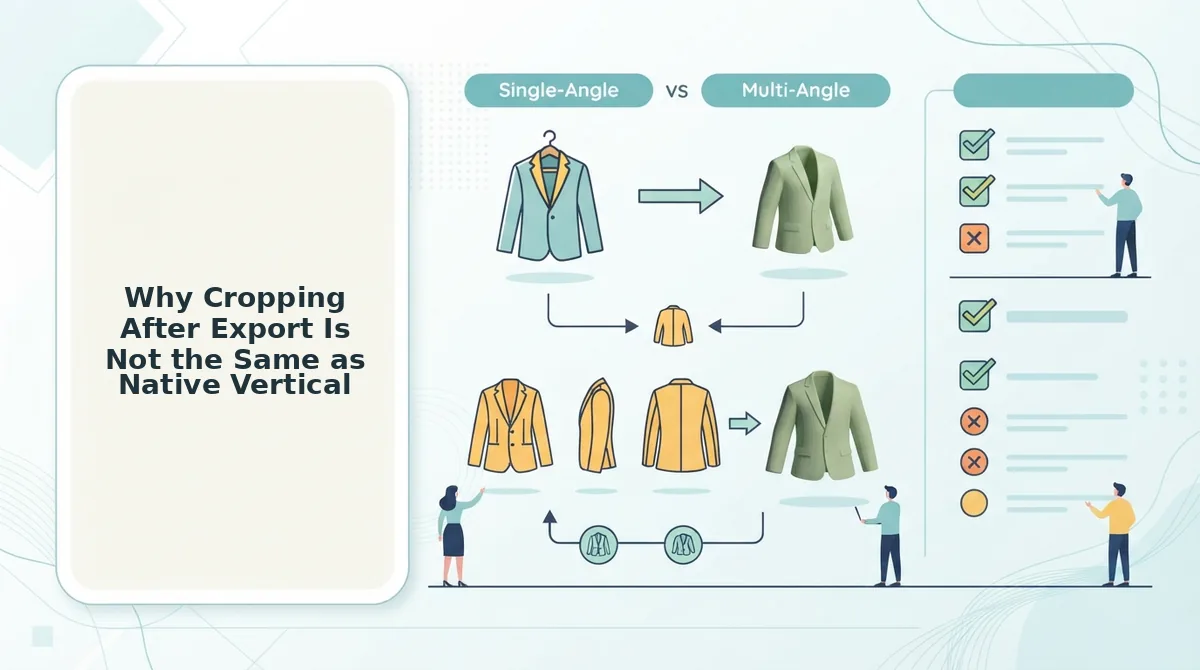
Cropping a horizontal video file to 9:16 after export is a destructive workaround, not a substitute for native vertical production. The distinction comes down to resolution retention, framing control, and whether the source file was built for the aspect ratio from the first frame.
When you crop a 1920x1080 horizontal file to 9:16, you discard over half the horizontal pixels, the resulting frame is 608x1080 before upscaling, which visibly softens fabric texture and garment detail. Native vertical video is rendered at 1080x1920 from the start, so every pixel contributes to the final frame.
Framing is the second casualty. Horizontal clothing shots are composed with breathing room on the left and right, not top and bottom. Cropping to vertical often cuts off garment edges, hands, or the model's head because the original composition never anticipated a tall frame. Native vertical generation composes the shot for 9:16 from the first frame, keeping the full garment, model, and motion intent intact.
Cropping also forces manual work per clip: you must reposition, re-time, and re-export every video. Native vertical output from an AI fashion UGC video generator produces platform-ready files without that post-production loop.
| Method | Resolution After 9:16 | Framing Control | Workflow | Best For |
|---|---|---|---|---|
| Native vertical generation | 1080x1920, full sharpness | Composed for 9:16 from frame one | Single-pass, platform-ready output | DTC brands scaling SKU-level creative across TikTok, Reels, and Shorts |
| Cropping horizontal export | 608x1080 before upscaling, visible softness | Edges, hands, and garment details often cut off | Manual crop, reposition, and re-export per clip | One-off edits where a single horizontal asset must be repurposed quickly |
| Shooting vertical in-camera | 1080x1920, full sharpness | Full control, but requires new footage | Production shoot required | Brands with budget for dedicated vertical video shoots |
Cropping has a legitimate place when you have no alternative and need a quick repurpose of existing horizontal footage. But for catalog-driven fashion brands that already own product photography, native vertical generation from stills avoids both the resolution penalty and the framing guesswork.
Platform-Specific 9:16 Requirements for Clothing Video
Every major short-form platform accepts 9:16 vertical video, but output settings, duration limits, and compression behavior vary. Use this checklist to export clothing videos that fill each feed without letterboxing or quality loss.
- TikTok: 1080x1920, 9:16, MP4, H.264. TikTok's native player is built for full-screen vertical, so any file with black bars is immediately flagged as low-effort by the algorithm. Export at 1080x1920 with H.264 compression to keep fabric texture sharp after TikTok's re-encoding.
- Instagram Reels: 1080x1920, 9:16, MP4, H.264. Reels shares the same technical spec as TikTok, but Instagram's compression is slightly more aggressive on fine detail. Start with the highest-quality 9:16 source file so garment stitching and fabric movement survive the platform's processing.
- YouTube Shorts: 1080x1920, 9:16, up to 60 seconds. Shorts allows the same vertical resolution but supports longer clips than the 60-second cap on some Reels placements. Use the full 60 seconds for multi-angle garment showcases that move from flat lay to on-body to detail shots.
- Ecommerce product pages: 9:16 embeds that fill mobile screens without bars. Product page video players on Shopify and other platforms render best when the source file is already 9:16. A native vertical file embeds cleanly on mobile PDPs, where the majority of fashion traffic converts.
- Paid social placements: 9:16 for Stories, Reels, and in-feed vertical. Meta and TikTok ad managers prioritize vertical creative for mobile placements. Uploading a 9:16 native file prevents the platform from auto-cropping your horizontal asset and cutting off garment edges in the ad preview.
- File naming and metadata: include aspect ratio and SKU. Naming files like SKU-4821-9x16-ugc.mp4 helps creative teams sort vertical assets from horizontal versions and prevents the wrong file from being uploaded to a vertical placement.
- Bitrate floor: 8-12 Mbps for 1080x1920 H.264. Low-bitrate vertical exports show visible banding in dark fabric and motion blur on moving garments. Stay above 8 Mbps to preserve detail through platform re-encoding.
If you are generating clothing video from still product photos, an AI clothing ad generator can output directly at 1080x1920 so every platform requirement above is met without a manual export step.
FAQ About Native Vertical Clothing Video
Native vertical clothing video is rendered at 1080x1920 from the first frame, so it fills TikTok, Reels, Shorts, and mobile product pages without black bars, cropping, or resolution loss. These answers cover the most common questions from fashion brands and ecommerce teams.
Can I remove letterboxing from a video after export?
You cannot remove letterboxing after export without re-rendering at 9:16. Cropping or zooming a letterboxed file in an editor discards resolution and often cuts off garment edges or hands. The only clean fix is regenerating or re-exporting the source at 1080x1920.
What is the difference between native vertical and cropped vertical video?
Native vertical is rendered at 9:16 from the start, so the full frame is used and the composition is built for a tall aspect ratio. Cropped vertical is a horizontal file cut down to 9:16, which loses over half the horizontal pixels and frequently clips garment edges, hands, or the model's head.
Why do black bars appear on my TikTok clothing videos?
Black bars appear on TikTok when you upload a video that is not 9:16, such as a 16:9 horizontal or 1:1 square file. TikTok pads the empty space with black bars instead of cropping. Exporting or generating at 1080x1920 eliminates the bars entirely.
What resolution should clothing videos be for Instagram Reels?
Instagram Reels requires 1080x1920 at a 9:16 aspect ratio for full-screen display. Use MP4 with H.264 compression and a bitrate of at least 8 Mbps so fabric texture and motion remain sharp after Instagram's re-encoding.
Does YouTube Shorts use the same vertical format as TikTok?
Yes, YouTube Shorts uses 1080x1920 at 9:16, the same as TikTok and Reels. Shorts supports videos up to 60 seconds, which gives you room for multi-angle garment showcases that move from flat lay to on-body to detail shots.
How do I make vertical clothing videos from product photos I already have?
Upload one to six still photos of a single apparel item to an AI fashion UGC video generator that outputs native 9:16 video. The tool composes the motion for vertical from the first frame, so you get platform-ready 1080x1920 files without shooting new footage or cropping horizontal exports.
Native Vertical Clothing Video Without Letterboxing: The Render-Time Decision Is the Whole Game
Every workaround discussed in this article, cropping after export, platform-side resizing, manual zoom-and-pan, shares one failure point: the video was already baked at the wrong aspect ratio. Selecting 9:16 at render time is the single setting that eliminates letterboxing and keeps garment framing intact. Nothing downstream can fully recover what a 16:9 or 4:3 export already discarded.
The open loop from the start of this article resolves cleanly: native vertical clothing video is not a post-production fix. It is a pre-render commitment. When you choose 9:16 before the AI generates motion, the model frames the garment for vertical space from the first frame. Fabric drape, collar detail, and hemline movement stay inside the safe zone because the safe zone was defined before any pixels were written.
Here is the synthesis that ties every section together:
- Letterboxing is a symptom of rendering at the wrong aspect ratio, not a platform problem.
- Cropping after export sacrifices resolution and reframes the garment unpredictably.
- Platform-specific 9:16 requirements all converge on the same render-time setting.
- The fix is one decision, made once, before generation, not a workflow of corrections.
Your next step is to run one product photo set through a clothing video generator with 9:16 selected at render time. Compare the output against any letterboxed file you have previously exported. The difference is immediate: full-bleed vertical framing, no black bars, no resolution loss, and a garment that stays centered and intact across TikTok, Reels, and Shorts.
Native vertical clothing video is not a crop, it is a render-time decision that protects your garment framing before a single frame exists.