
Your product photography budget already produced a beautiful flat lay, but the flat lay video generator vs CapCut question stalls every apparel brand at the same fork: do you animate the photo, or do you generate garment motion from it? CapCut can pan, zoom, and add trending audio to a still image in minutes. What it cannot do is make a hoodie drape, a dress sway, or a sleeve fold the way fabric actually behaves. That distinction, photo animation versus garment motion generation, is the entire decision, and most comparison content glosses over it.
You're right to hesitate. Your catalog photos are already paid for, and you need short-form video for Reels, TikTok, and product pages without commissioning a UGC creator for every SKU. This guide will show you exactly what each tool does with the same flat lay file, where each one wins, and which workflow fits a 50-SKU afternoon. You'll also see why the output-type taxonomy, animated still versus generated garment motion, matters more than any feature list, and why one surprising limitation of CapCut changes the math for ghost mannequin catalogs.
Start by understanding the mechanical difference, then apply the decision matrix to your own catalog. If you're weighing a purpose-built flat lay to fashion video workflow, the sections below give you the framework to choose without wasting an afternoon on trial exports.
What Each Tool Actually Does with a Flat Lay Photo
A flat lay video generator is a purpose-built tool that ingests one to six still photos of an apparel item and outputs a video file with generated garment motion, no timeline editing required. CapCut is a general-purpose video editor that animates the photo itself using pans, zooms, keyframes, and templates, but the garment never moves independently of the frame.
CapCut: Animating the Photo, Not the Fabric
When you import a flat lay into CapCut, you're working with a static image on a timeline. The tool applies motion to the frame, a slow zoom toward the collar, a pan across the fabric, a template that adds trending audio and text overlays. Think of it like moving a camera around a printed photograph: the perspective changes, but the subject remains frozen. The sleeve doesn't fall differently. The hem doesn't shift. The fabric doesn't breathe.
CapCut's strength is manual control. You can keyframe a zoom from the neckline to the hem, layer text overlays, sync cuts to audio beats, and export in vertical formats for TikTok and Reels. For a single hero product or a brand announcement, that control is valuable. But for 50 SKUs, you're rebuilding the same keyframe sequence fifty times, and the output still reads as an animated photo, because it is one.
Flat Lay Video Generator: Generating Garment Motion from Stills
A flat lay video generator interprets garment proportions from one to six stills, front, back, side, flat lay, on-body, or fabric detail, and applies drape, sway, and fold behavior that mimics how the fabric would move in real life. The tool models the garment as a structure, not a picture. The output is a video file you review and export, with no timeline scrubbing, no keyframe editing, and no template hunting.
The analogy: CapCut is like moving a spotlight around a mannequin in a store window. The flat lay generator is like putting the garment on a person who moves. One changes your viewing angle; the other changes the subject itself.
For a complete walkthrough of the ingestion-to-export process, see the flat lay to fashion video workflow guide, which covers source image selection, angle requirements, and output settings for ecommerce product pages.
If you're asking whether a flat lay photo can become a UGC-style video without a creator, the answer is yes, but only when the tool generates garment motion rather than animating the frame. A flat lay video generator ingests up to six stills and outputs a motion file where the fabric drapes and sways as a modeled structure. CapCut, by contrast, applies pan, zoom, and keyframe motion to the photo itself, leaving the garment frozen within a moving frame. The distinction determines whether your output reads as a product video or a slideshow.
The Decision Matrix: When CapCut Wins, When a Generator Wins
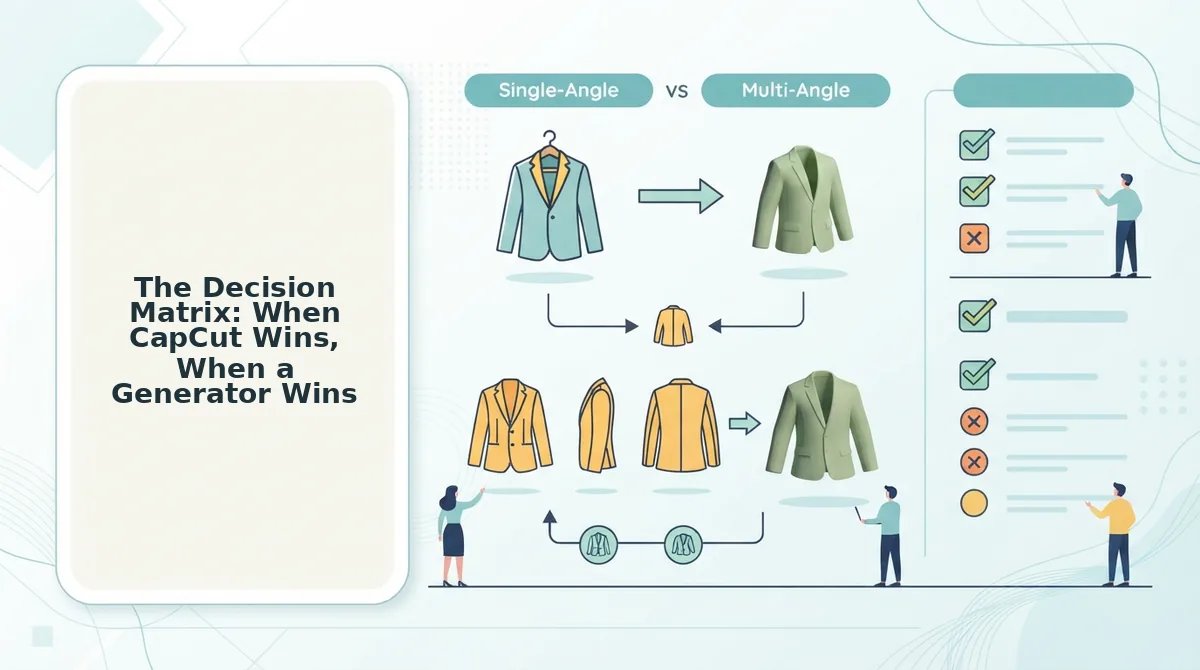
Choose CapCut when you need manual control, text overlays, multi-scene edits, or non-apparel content. Choose a flat lay video generator when you need SKU-level garment motion from catalog stills at scale, with no timeline editing. Both tools are legitimate; they solve different problems.
Where CapCut Earns Its Place
CapCut is a capable general-purpose editor, and dismissing it would be a mistake. For a single product launch, a brand story video, or a campaign that needs precise text overlays and audio sync, CapCut's manual timeline is exactly what you want. It also handles non-apparel content, lifestyle shots, behind-the-scenes clips, founder messages, that a flat lay generator isn't built for.
Best for: A brand marketer producing one polished hero video for a drop, or a creator who wants frame-by-frame control over a single product's presentation.
Where a Flat Lay Generator Earns Its Place
A flat lay video generator wins when the task is repetitive, SKU-level, and garment-specific. Ghost mannequin stills, flat lay catalog shots, and multi-angle product photography all convert to motion without rebuilding keyframes per item. The output is consistent garment motion across an entire catalog, something manual editing cannot replicate at scale without hours per SKU.
Best for: A Shopify fashion brand with 50 to 500 SKUs, a performance creative team testing video against CAC, or an agency producing product-page motion for multiple apparel clients.
| Criteria | CapCut | Flat Lay Video Generator |
|---|---|---|
| What moves | The frame (pan, zoom, keyframes) | The garment (drape, sway, fold) |
| Input | Any image or video | 1-6 apparel stills per item |
| Timeline editing | Required | None, outputs a video file |
| Text overlays and audio sync | Full manual control | Not the core function |
| Scale (50+ SKUs) | Manual per SKU | Batch-friendly, consistent output |
| Non-apparel content | Yes | No, apparel-specific |
| Best for | Single hero videos, brand storytelling | SKU catalogs, ghost mannequin stills, product pages |
The honest take: CapCut is the better general-purpose editor, and no flat lay generator should claim otherwise. But when the job is turning 50 flat lay stills into 50 product videos before lunch, the generator's lack of a timeline is the feature, not the gap. That's the workflow reality the next section unpacks.
Workflow Reality: 50 SKUs, One Afternoon
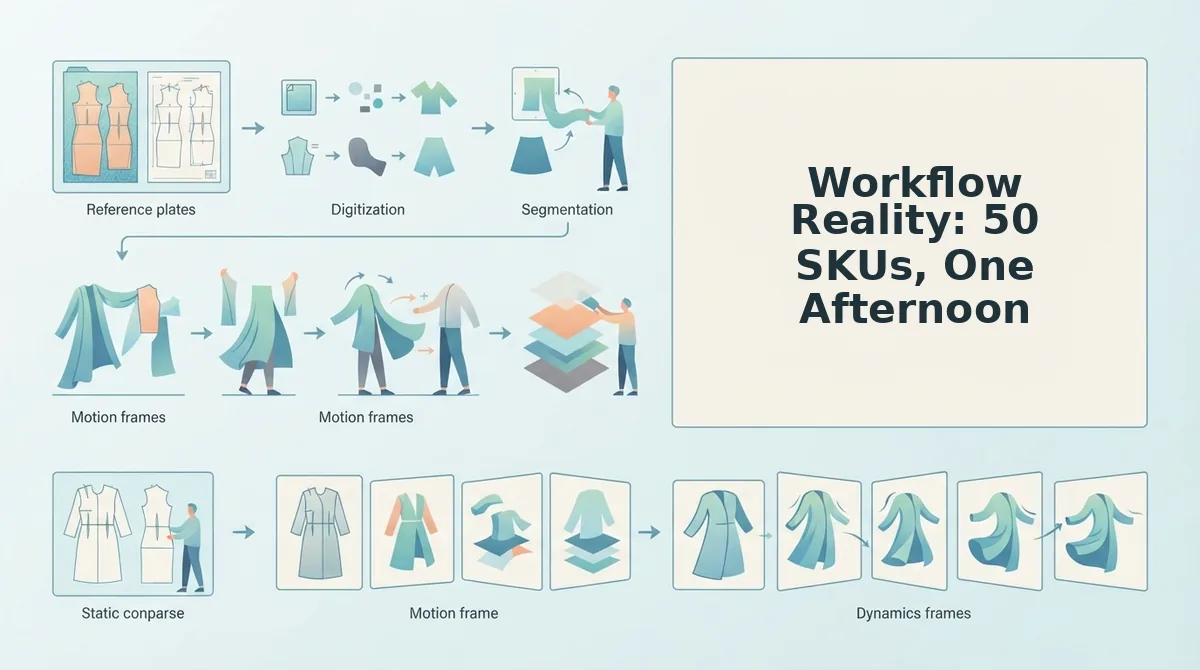
A merchandiser with 50 ghost mannequin stills can batch-generate motion in roughly one afternoon with a flat lay video generator, while CapCut requires per-clip timeline work for each SKU that stretches the same job across multiple days. Here is the step-by-step reality for both paths.
Prerequisites: 50 flat lay or ghost mannequin stills (1-6 angles per SKU if using a generator), a CapCut account or a flat lay generator subscription, and a naming convention for output files.
- Open your flat lay generator and create a new batch. Navigate to the upload panel and select all 50 primary stills at once. You should see thumbnails populate in a grid, with a progress bar showing ingestion status.
- Upload supplementary angles per SKU where available. Drag front, back, and detail shots into each SKU's slot. The generator ingests 1-6 stills per SKU and uses them to build garment structure. Expect roughly 20-30 minutes for a 50-SKU batch if files are pre-organized [est.].
- Select your output preset and aspect ratio. Choose a UGC-style motion template, then set 9:16 for Reels and TikTok or 1:1 for paid feed placements. Click Generate. You should see a queue counter begin processing SKUs sequentially.
- Review the batch output folder. After generation completes, typically 1-2 hours for 50 SKUs [est.], open the folder and spot-check every fifth video. Confirm the garment stays centered and fabric movement looks natural. Flag any SKU that needs a re-run.
- Export and rename files by SKU ID. Use your existing product ID convention so the paid social team can map videos to ad sets without guesswork. You should end the afternoon with 50 ready-to-test video files.
For comparison, the CapCut path looks different. Open CapCut, import one SKU's still, add keyframes for a slow zoom or pan, apply a trend audio clip, adjust duration to 8-15 seconds, then export. Repeat for each SKU. At 8-12 minutes per clip [est.], 50 SKUs consumes 7-10 hours of focused editing, and that is before revisions. CapCut requires per-clip timeline work for each SKU because every animation, transition, and audio sync is manual.
If your goal is to turn product photos into video at catalog scale, batch generation is the only path that fits a single afternoon. CapCut remains useful for hero SKUs that justify hand-tuned motion, but it does not scale to a 50-SKU paid social test without a dedicated editor.
Passage for quick reference: A flat lay video generator processes apparel stills in batch by ingesting one to six photos per SKU, typically front, back, side, and detail angles, then outputs a finished video file without requiring timeline editing. The user uploads images, selects a motion preset and aspect ratio, and receives rendered clips organized by SKU. In contrast, CapCut treats each SKU as a separate project: the user imports one photo, manually adds keyframes for zoom or pan, syncs audio, adjusts clip duration, and exports before moving to the next item. This per-clip timeline work is the core reason batch generation completes 50 SKUs in one to two hours while manual editing takes a full workday or more.
When your paid social test needs 50 variants by end of day, the generator workflow is the one that gets you to launch.
Output Quality: What the Viewer Actually Sees
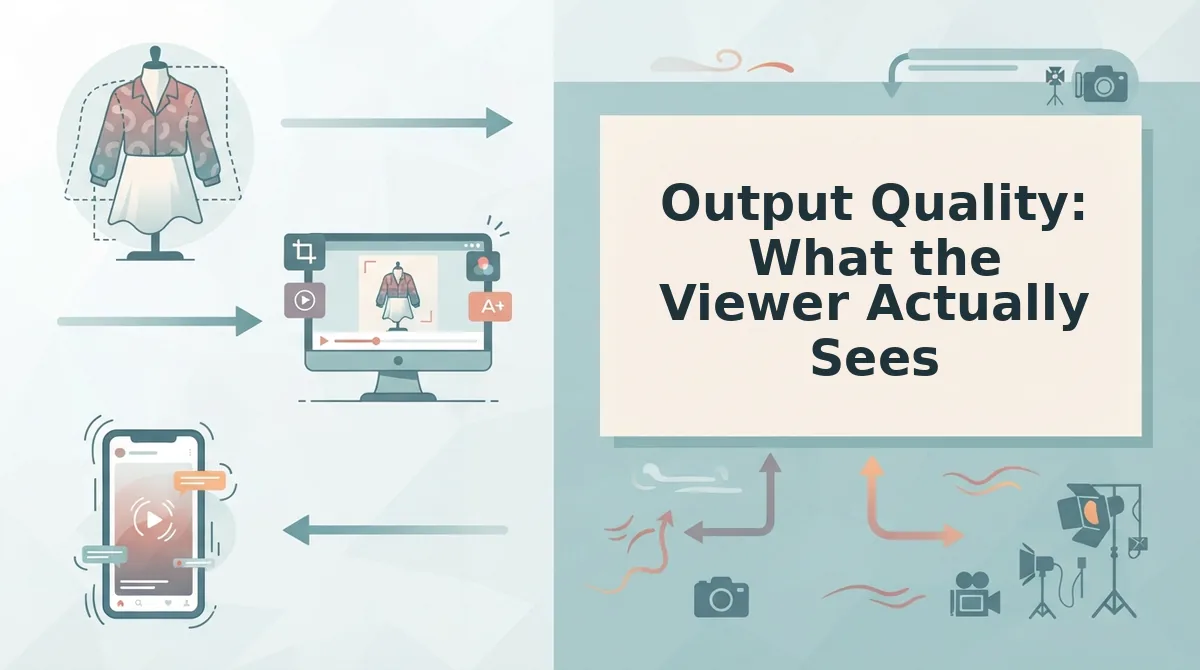
Output quality is the visible difference between a photo that moves and a garment that appears to exist in motion. CapCut produces clean, template-driven animation that is visibly a moving photo, while a flat lay generator models garment drape and fabric movement with less manual control over the final frame.
Flat lay video generation is the process of converting static apparel photography into short-form motion by reconstructing garment structure from multiple still angles. Think of it like the difference between sliding a printed photograph across a table and actually picking up the shirt and letting it fall, one moves the image, the other moves the object.
At the simple end, CapCut applies keyframe animation to a single flat lay: a slow zoom toward the collar, a diagonal pan across the fabric, a subtle rotation. The output is sharp and consistent because the source photo is untouched. But the shirt never bends. Sleeves stay frozen in their photographed position. The viewer's eye registers this within the first second, it looks like a slideshow with motion effects, not a garment.
At the intermediate level, CapCut's template library adds transitions, text overlays, and trend audio that make the clip feel native to TikTok or Reels. This is where CapCut genuinely excels: pacing, rhythm, and platform-native polish. A skilled editor can make a flat lay feel energetic and on-trend. What they cannot do is make the fabric move.
At the advanced level, a flat lay generator reconstructs the garment from multiple angles, front, back, side, detail, and simulates how the fabric would drape and shift. The output shows sleeves that sway, hems that lift, and fabric that ripples. This is the visible difference: CapCut output is clean and template-driven but remains a moving photo, while generator output shows garment drape and fabric movement. The trade-off is control. CapCut gives frame-by-frame precision; a generator gives you a rendered file that you either accept or regenerate.
For apparel brands, the question is what the viewer needs to believe. A clothing video generator sells the garment. CapCut sells the edit. Both have a place in a creative testing pipeline, but they are not producing the same thing.
FAQ: Flat Lay Video Generator vs CapCut
A flat lay video generator reconstructs garment motion from still photos, while CapCut animates the photo itself. The output difference is fabric movement versus image movement.
Can CapCut turn a flat lay into a realistic clothing video?
No. CapCut animates the photo, it applies zooms, pans, and transitions to a static image. It does not model fabric physics or garment structure, so the clothing never bends, drapes, or moves naturally. The result is a polished moving photo, not a realistic garment video.
What is the actual output difference between a flat lay generator and CapCut?
A flat lay generator ingests 1-6 stills per SKU and outputs a video file where the garment appears to drape and shift. CapCut outputs a timeline edit of a single photo with keyframe motion. One simulates the garment; the other animates the image.
Do I need to reshoot anything to use a flat lay video generator?
No. Both tools work from existing stills. A generator performs best with 2-6 angles per SKU, front, back, side, and detail, but a single high-quality flat lay is enough to start. CapCut needs only one image. The difference is what each tool does with the photos you already have.
How long does it take to process 50 SKUs in each tool?
A flat lay generator processes 50 SKUs in roughly 1-2 hours of batch time [est.], plus upload and review. CapCut requires 8-12 minutes of manual timeline editing per SKU [est.], totaling 7-10 hours for the same catalog. Batch generation is the faster path at scale.
Why does CapCut output look like a moving photo?
CapCut applies keyframe animation to a flat image, zoom, pan, rotate, without reconstructing the garment's three-dimensional structure. The photo stays flat, so the motion reads as a camera move over a print rather than fabric moving in space.
If you are weighing these two approaches for your next creative test, the next section breaks down which one fits your brand's production reality.
Which One Should You Pick for Your Apparel Brand?
The answer collapses into one question: how many SKUs do you actually need in motion this month? If the number is above twenty, CapCut stops being a creative tool and starts being a production bottleneck. If the number is under five and every frame needs hand-tuned easing, CapCut remains the right call.
That is the entire decision matrix, and it holds up under workflow pressure. The generator wins on catalog scale, batch consistency, and zero-editing throughput. CapCut wins on manual control, bespoke pacing, and general-purpose flexibility. Neither tool replaces the other because they solve different jobs.
Here is the synthesis most comparison pieces miss: the bottleneck was never video editing skill, it was photo-to-motion conversion at apparel volume. CapCut assumes you already have motion. The flat lay generator creates it from stills you already own. That is not a feature gap; it is a category difference.
- Soft step: Audit your current flat lay photography. If you have three or more angles per SKU, you already have generator-ready source material.
- Medium step: Map one product line through the generator workflow and compare the output against your last three CapCut edits side by side.
- Strong step: Run your next catalog drop through the AI clothing ad generator and measure how many motion-ready SKUs you produce in a single afternoon.
The open loop from the intro closes here: the tool that "actually creates apparel motion" is the one that starts from a still photo, not the one that edits motion someone already captured. For catalog-scale apparel brands, that distinction decides the winner before the first timeline is opened.
"CapCut edits motion; a flat lay video generator creates it, and at apparel catalog scale, creation is the only workflow that survives."