Your catalog photos show the garment, but your AI-generated listing videos show a stiff, lifeless version of it, because the generator never saw how the fabric actually behaves. The fix is simpler than reshoots: add fabric detail closeup photos for listing video generation, and the same tool that produced flat results starts rendering drape, weight, and movement that look shot on a body.
You already own the photography. The problem is that most apparel catalogs are built for human shoppers, not for AI video models that need texture data to simulate motion. One to two sharp, evenly lit macro shots per SKU measurably improve output quality, because AI video generators read weave density, fiber direction, and surface reflectivity from closeups to simulate natural drape and movement.
This guide covers why closeups change rendering behavior, how to shoot them so the generator can actually use them, and where they fit in a flat lay to fashion video workflow. Stick around for the closeup technique that changes drape rendering, it is not what most brands try first.
Why Fabric Closeups Change How AI Video Generators Render Clothing
A fabric closeup is a macro photograph that captures weave structure, fiber direction, and surface texture at high enough resolution for an AI video model to infer how the material moves. Without it, the generator defaults to generic cloth physics, which is why your linen shirt renders like polyester.
Think of a fabric closeup like a material spec sheet for a 3D renderer. A flat catalog shot tells the AI what the garment looks like; a texture plate tells it how the fabric behaves under tension and gravity. The generator reads three signals from the closeup:
- Weave density, how tightly fibers are packed, which predicts stiffness and stretch.
- Fiber direction, the nap or knit orientation, which determines how light catches the surface during movement.
- Surface reflectivity, matte versus sheen, which controls how highlights shift as the garment folds.
Here is the direct answer: yes, fabric closeups improve listing video output. AI video generators trained on apparel footage use texture maps extracted from closeup images to simulate drape, wrinkle formation, and light interaction. A single sharp macro shot of the weave gives the model enough data to render natural movement instead of a stiff, plastic-like fall. Brands that add one to two closeups per SKU see visibly more realistic motion in generated clips, especially for knits, denim, and textured weaves. The improvement is most noticeable in how sleeves fold and how fabric pools at the hem.
At the intermediate level, the mechanism is texture-to-drape mapping. The generator segments the closeup, identifies repeating weave patterns, and applies those patterns to the garment's surface as it animates. Advanced workflows pair the closeup with a flat lay or ghost mannequin shot so the model has both shape and material data, the same principle covered in our guide to product photos for AI fashion video.
How to Shoot Fabric Closeups That AI Video Generators Can Actually Use
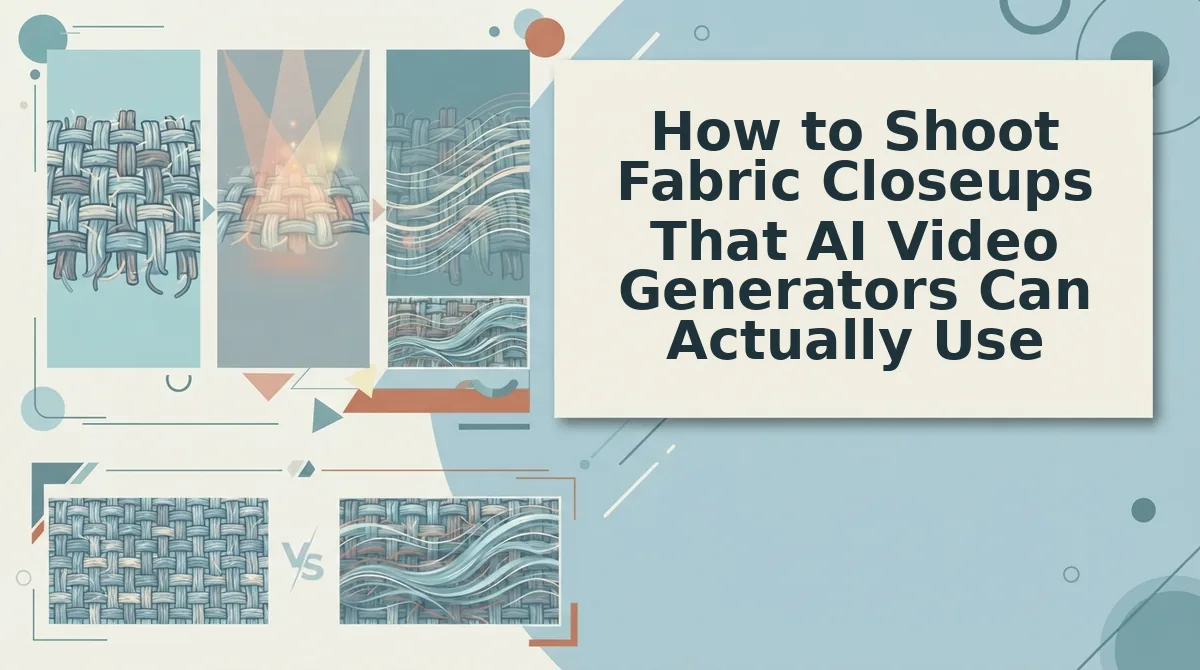
A usable fabric closeup is a sharp, evenly lit macro photo where the weave is visible, the field is flat, and the color matches your catalog shots. You need a phone or camera with manual focus lock, a window or softbox, and about two minutes per SKU.
- Set your light source at a 45-degree angle. Position the garment near a window or under a softbox so light rakes across the surface. This creates micro-shadows that reveal weave texture. You should see individual threads, not a blown-out white patch.
- Lock manual focus on the weave. Tap and hold the focus point on your phone, or switch to manual focus on a camera. Move close enough that the weave fills 60-80% of the frame. You should see crisp fiber edges when you zoom into the preview.
- Shoot the fabric flat and parallel to the lens. Lay the garment on a flat surface and position the camera directly above it. Any angle distorts weave density readings. The fabric should fill the frame edge to edge with no background visible.
- Take one shot of the main body fabric and one of a stress point. Capture the chest or sleeve panel, then a seam, cuff, or collar area where the fabric folds. These stress-point shots give the generator data on how the material creases under tension.
- Check the 5-point quality checklist before uploading. Confirm sharp weave visible, even lighting, no motion blur, flat field, and consistent color temperature against your catalog shots. If any point fails, reshoot, a blurry closeup is worse than no closeup for AI ingestion.
Phone cameras work if you control light and distance; manual focus lock and natural window light are the key workarounds. Avoid digital zoom and avoid HDR mode, both introduce artifacts that confuse texture detection. For consistent color across a full shoot, apply the same principles from our guide on lighting consistency garment photos.
One caution: Onemorecolour's "hundreds of garments per day" workflow is built for catalog shots, not the deliberate single-SKU closeup approach needed for AI video. Batch speed sacrifices the texture fidelity that closeups exist to provide. Where fabric closeups fit in your photo-to-video workflow comes next.

Where Fabric Closeups Fit in Your Photo-to-Video Workflow
Fabric closeups are one input among several that AI video generators use to reconstruct garment motion. Each photo type contributes a distinct data layer: closeups supply texture and weave information, flat lays supply overall shape and drape context, and ghost mannequin shots supply fit and structure.
The practical range is 1-2 closeups per SKU. Beyond two, the generator receives redundant texture data that can dilute its attention on silhouette and motion cues, producing videos with muddier drape or inconsistent fabric behavior. One closeup is usually sufficient for smooth knits and solid wovens; two help when a garment mixes materials, such as a ribbed cuff on a jersey sleeve.
Closeups do not replace other photo types. A generator working only from closeups has no reference for how the garment hangs on a body or falls from a hanger. The strongest input sets pair closeups with at least one full-garment shot, whether that is a flat lay or a ghost mannequin image.
| Photo Type | Data It Provides to the Generator | Best For |
|---|---|---|
| Fabric closeup | Texture, weave density, fiber behavior, surface sheen | DTC brands selling textured knits, bouclé, corduroy, or performance fabrics where hand-feel drives purchase intent |
| Flat lay | Overall silhouette, drape, pattern placement, color blocking | Shopify merchants with catalog photography already shot top-down who need quick motion from existing assets |
| Ghost mannequin | Fit, structure, seam placement, how fabric falls on a three-dimensional form | Apparel brands selling tailored or structured pieces where fit accuracy is the primary conversion driver |
Each approach has legitimate strengths. Flat lays are the fastest to produce at scale and give generators clean silhouette data. Ghost mannequin shots preserve the garment's dimensional shape, which matters for blazers, dresses, and anything with shoulder structure. Closeups win on texture fidelity, which is why they pair well with either method rather than standing alone.
If your current workflow starts with flat lays, the flat lay to fashion video guide walks through how to layer in closeups without reshooting your catalog. If you work from ghost mannequin photography, see ghost mannequin photos to PDP video for the same integration path.
For a single SKU, a practical input set is: one flat lay or ghost mannequin shot for shape, one front on-body or hanger shot for context, and one fabric closeup for texture. That three-image stack gives the generator enough signal to render believable motion without overloading it.
Troubleshooting: When Fabric Closeups Don't Improve Your Video
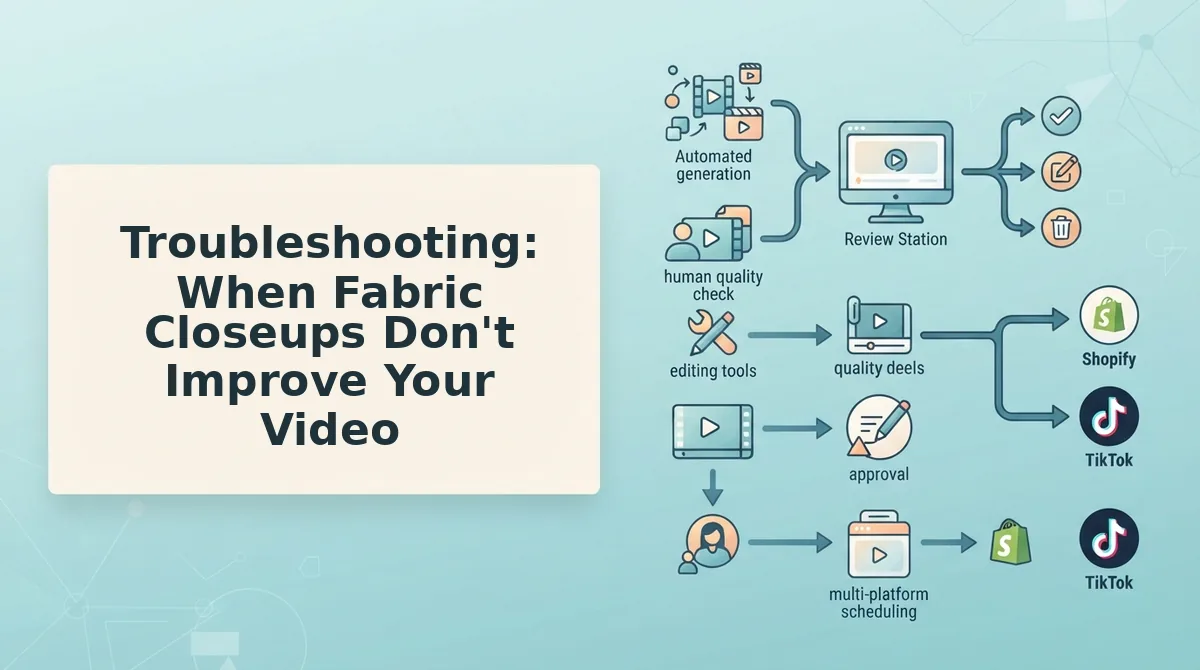
Closeups only help when they are sharp, consistently lit, and used in moderation. When output quality stalls, these are the failure points to check first.
- Blurry closeups are the #1 cause of poor drape rendering. A generator cannot extract weave or fiber data from a soft image, so it falls back to generic fabric behavior. Reshoot with manual focus locked on the fabric surface, a shutter speed of 1/125 or faster, and the camera stabilized on a tripod or flat surface.
- Inconsistent lighting between closeups and main shots creates visible seams in the generated video. If the closeup was shot in warm window light and the flat lay under cool studio strobes, the generator may render the fabric with a color shift or visible patch boundary. Match color temperature and exposure across every image in the set before uploading.
- Too many closeups can confuse the generator and reduce overall output quality. Three or more closeups per SKU flood the model with redundant texture data and starve it of silhouette context. Cut back to one or two closeups and add a full-garment shot if you have not already.
- Closeups shot at inconsistent distances produce uneven texture scale. One closeup at 6 inches and another at 18 inches give the generator conflicting information about fabric density. Keep all closeups for a SKU at roughly the same working distance.
- Closeups of the wrong area add noise, not signal. A closeup of a logo or button does not help the generator render drape. Aim the lens at the largest uninterrupted fabric surface, such as the chest panel, sleeve body, or skirt front.
- Low-resolution closeups under 1000px on the long edge starve the generator of detail. Export closeups at full camera resolution. Downscaled or heavily compressed images strip the texture data that makes closeups valuable in the first place.
- Closeups without a full-garment reference leave the generator guessing on shape. Texture data alone cannot reconstruct how a dress falls from the shoulders. Pair every closeup set with at least one flat lay or ghost mannequin shot. For more on this failure mode, see flat lay to video mistakes garment drape.
FAQ
Do fabric closeup photos improve a clothing product listing video?
Yes. Fabric closeups provide texture data that AI video generators use to render realistic drape, surface movement, and material behavior. Without closeups, generators fall back on generic fabric assumptions, which can make a bouclé knit move like a smooth jersey. One to two sharp closeups per SKU measurably improves texture fidelity in the output.
Can I shoot fabric closeups with my phone?
Yes, if you control light and focus manually. Use a window or softbox for even illumination, lock focus on the fabric surface, and hold the phone steady or brace it against a surface. Avoid digital zoom, which softens detail. Shoot at the phone's native resolution and export without compression.
How many product photos does an AI video generator need?
Most AI fashion video generators accept between one and six images per SKU, with three being a practical sweet spot: one full-garment shot for shape, one on-body or hanger shot for context, and one fabric closeup for texture. See how many photos for product listing video for a full breakdown.
What's the difference between a fabric closeup and a flat lay?
A fabric closeup captures texture, weave density, and surface sheen at close range. A flat lay captures the entire garment laid flat, showing overall silhouette, drape, pattern placement, and color blocking. They serve different functions: closeups supply material data, flat lays supply shape data.
Why does my generated video show seams or color shifts in the fabric?
Seams and color shifts usually come from inconsistent lighting between your closeup and your main product shots. If the closeup was shot under different color temperature or exposure than the flat lay, the generator blends mismatched data. Match lighting conditions across every image in the set before uploading.
The closeup gap is your fastest creative win
If your catalog photos skip texture, your AI-generated videos skip realism. That's the open loop from the start of this article, and the evidence closes it cleanly: fabric closeups give the generator the surface data it needs to render drape, weight, and movement convincingly instead of guessing.
Your next step depends on where you are today:
- Soft start: Review your current catalog photos for texture coverage. Flag every top-selling SKU missing a macro shot.
- Medium move: Shoot 1-2 closeups per bestseller using the 5-point checklist from the shooting section. Ten minutes per SKU.
- Strong play: Upload the new closeups through product photo to video and compare output quality before and after. The difference in fabric rendering is visible in the first render.
This isn't a production overhaul. It's a data-quality fix. The generator can only render what your photos prove exists.
Fabric closeups are not extra content, they are the source data that determines whether your AI video looks like clothing or a costume.